
If you own a Mac, you might find your storage filling up fast. Apps take space, and old ones can slow things down. That’s why knowing how to uninstall apps on mac matters. This guide shows you safe, easy steps. We cover basic drags to advanced cleans. No tech skills needed. Let’s start.
Why You Should Uninstall Apps on Your Mac
Apps help us work and play. But too many cause issues. Your Mac might run slow or lack space for updates. In 2026, macOS handles apps better, but clutter builds up.
Think about it. The average user installs 50-100 apps over time. Many sit unused. Removing them frees gigabytes. It also cuts background tasks that drain battery.
Plus, it keeps your system tidy. Old apps might have security risks if not updated. Uninstalling fixes that.
For example, if an app crashes often, ditch it. Or if you switch tools, clear the old one. This keeps your Mac fresh.
Basic Method: Drag and Drop to Trash
The simplest way on how to uninstall apps on mac is drag and drop. It works for most apps from the web or discs.
- Open Finder. Click the smiley face in your Dock.
- Go to Applications in the sidebar.
- Find the app you want gone.
- Click and drag its icon to the Trash can on the Dock.
- Right-click Trash and pick Empty Trash.
Done. The app vanishes. But check if it has an uninstaller first. Some apps come with one in their folder. Double-click it for a clean remove.
This method is quick. It takes seconds. But it might leave files behind. We’ll cover that later.

Using Launchpad for Quick Uninstalls
Launchpad makes it fun. It’s like your iPhone home screen. For App Store apps, this shines.
Open Launchpad. Click the rocket icon in Dock. Or pinch with thumb and three fingers on trackpad.
Find the app. Hold Option key. Icons jiggle. Click the X on the app.
Confirm delete. Poof, it’s gone.
Note: In newer macOS like Tahoe, Launchpad might change. But basics stay. This works for simple apps.
If no X shows, use another way. It’s for App Store buys mostly.

Uninstall from the App Store
Bought from App Store? Easy fix.
Open App Store. Click your profile bottom left.
See your apps. Hover on one. Click three dots. Pick Delete App.
Or, in Purchased tab, find it. Click cloud to reinstall later if needed.
This clears it fully. No leftovers usually.
Use System Settings for Storage Management
Mac’s built-in tool helps. Go to Apple menu > System Settings > General > Storage.
See app sizes. Click i next to Applications.
Pick an app. Click Delete.
It removes and empties Trash. Smart way to spot big space hogs.
In 2026, this scans deeper. It shows cache too.
Handling Apps with Built-in Uninstallers
Some apps are smart. They include uninstall tools.
In Applications, open the app’s folder. Look for “Uninstall [App Name]”.
Double-click. Follow prompts. It zaps all files.
Examples: Adobe apps, antivirus. Always check first.
If no uninstaller, drag works. But for complete clean, hunt leftovers.
Removing Leftover Files Manually
Dragging leaves crumbs. Like preference files, caches.
To clean:
- Quit the app.
- Open Finder. Press Command + Shift + G.
- Type ~/Library/.
- Search app name in folders like Application Support, Caches, Preferences.
- Delete matches. Be careful – wrong delete hurts other apps.
Folders to check:
- ~/Library/Application Support/
- ~/Library/Preferences/
- ~/Library/Caches/
- /Library/ (system wide)
Empty Trash after.
This frees more space. But it’s tedious. Use if app was big.
Advanced: Uninstall with Terminal
For pros, Terminal rocks. It’s command line.
Open Terminal from Spotlight (Command + Space).
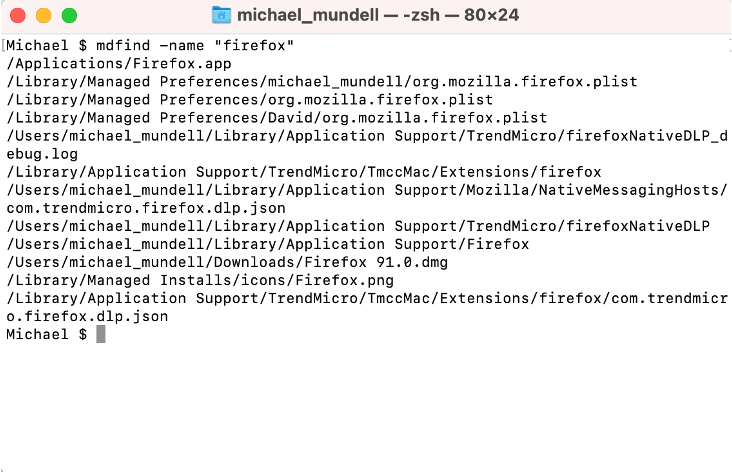
To find files: Type mdfind -name “AppName”
It lists paths.
To delete: sudo rm -rf /path/to/app
Careful! Wrong command deletes wrong stuff. Use sudo for admin.
Example for stubborn app:
cd /Applications/
sudo rm -rf AppName.app
Then hunt leftovers with find.
In 2026, Terminal has better autocomplete. Still, backup first.
Best Third-Party Tools for Complete Uninstall
Don’t want manual work? Tools help.
CleanMyMac: Scans and removes all. Paid but worth.
AppCleaner: Free. Drag app in, it finds files. Delete.
iBoysoft MagicMenu: Custom right-click. Uninstall option.
These save time. They catch hidden files.
Stats show: Users regain 10-20GB with cleaners.
Pick trusted ones. Read reviews.
For SEO tips on choosing tools, check Rank Newly’s SEO category.
Common Issues and Fixes
App won’t delete? It’s open. Quit from Dock or Force Quit (Option + Command + Esc).
Password prompt? Normal for system apps.
Stuck in Trash? Restart Mac. Then empty.
If app reinstalls, check subscriptions.
For iPhone links, see how to turn off iPhone for related tips.
Tips for Keeping Your Mac Clean
- Uninstall unused apps monthly.
- Use Storage to monitor.
- Backup with Time Machine before big cleans.
- Avoid shady apps; they leave mess.
- Update macOS for better tools.
Quote from Apple: “Deleting apps frees space for what matters.”
FAQs on How to Uninstall Apps on Mac
Q: Does uninstalling delete my data? A: Yes, but files you saved elsewhere stay.
Q: Can I reinstall later? A: Sure. From App Store or download again.
Q: What’s the safest way on how to uninstall apps on mac? A: Use built-in uninstaller if there.
Q: Why do leftovers matter? A: They take space and might conflict.
Q: Is Terminal safe for beginners? A: No, stick to basics.
Conclusion
You now know how to uninstall apps on mac from simple drags to deep cleans. Free space, speed up your Mac. Start with basics, go advanced as needed. Your Mac will thank you.
What app will you uninstall first?
References
- Apple Support: Delete or uninstall apps on Mac – Official guide for basic methods.
- Apple Support: Install and uninstall apps from the internet or a disc on Mac – Details on drag to Trash.
- PCMag: Running Out of Space? How to Uninstall Mac Apps the Right Way – Tips on complete removal.
- Setapp: How to uninstall apps on Mac that won’t delete – Third-party tool recommendations.
- For more tech insights, visit Biz Reporterz.