

School Chromebooks work almost the same as regular ones for screenshots. Schools manage them with rules, but basic screenshot shortcuts usually stay available. This helps students capture notes, homework problems, or errors to show teachers.
The steps are simple and safe. They come from Google’s official help and work on most school devices in 2026.
Main Keyboard Shortcuts
Most school Chromebooks use these easy key presses.
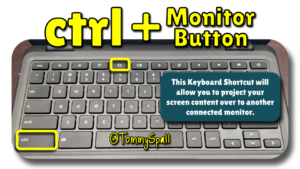
- Full screen screenshot Press Ctrl + Show windows at the same time. The Show windows key looks like a rectangle with two vertical lines (often in the top row, like a square with lines on the right). Your screen flashes, and a small notification pops up in the bottom right. The image saves to your Downloads folder.


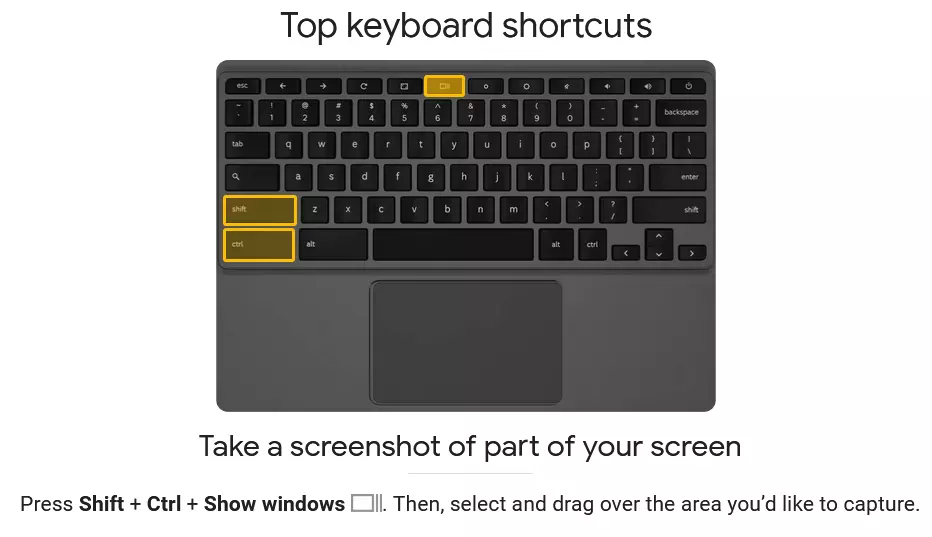
- Partial screenshot (select an area) Press Ctrl + Shift + Show windows together. Your cursor turns into a crosshair. Click and drag over the part you want. Release to capture. Again, it saves to Downloads with a notification.
These shortcuts work on almost all Chromebooks, even managed school ones.
Use the Screen Capture Tool (No Keyboard Needed)
If keys feel tricky or your school Chromebook hides some options:
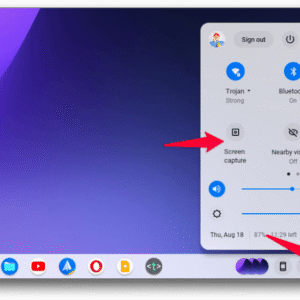
- Click the time in the bottom right corner (Quick Settings panel opens).
- Look for the Screen capture tile (it looks like a square with a circle or camera icon).
- Click it to open the toolbar at the bottom.
- Choose Screenshot.
- Pick full screen, partial (drag to select), or window.
- Click Capture or take the shot.
![2023 Guide] How to Take a Screenshot on a Chromebook with Ease - Awesome Screenshot & Recorder](https://awe-pub.s3.amazonaws.com/blog/image/chrome-quick-settings-screen-capture-1677554551778.png)

This method gives extra options like timers or annotations on newer Chrome OS versions.
Where Do Screenshots Go?
- They save automatically in the Downloads folder inside the Files app.
- Open Files (launcher icon > search “Files”).
- Go to My files > Downloads.
- Look for names like “Screenshot 2026-02-16 at 10.14.00.png”.
- You can rename, move, or share them via Google Drive or email to your teacher.
Tips for School Chromebooks
- If it says “Failed to save” or “error occurred”: Storage might be full, or school policy blocks saves. Try deleting old files first. Some strict schools limit screenshots on certain apps (like during tests), but normal class pages usually work.
- Tablet mode (if your Chromebook flips): Press Power button + Volume down for a quick full screenshot.
- Sharing fast: After capture, click the notification to “Show in folder” or copy to clipboard (some versions let you paste right into Google Docs).
- Keep your Chromebook updated for the best tools—go to Settings > About Chrome OS > Check for updates.
These steps are the same on brands like HP, Lenovo, Acer, or Dell school models. No extra apps needed.
Practice once or twice, and it becomes quick. Many students use screenshots daily for math problems, science diagrams, or to ask for help.
What do you usually screenshot on your school Chromebook? Let me know below!