
How to Clear Cache on iPhone – a quick fix many users need when their device feels slow or apps act up. How to clear cache on iPhone helps remove old files that build up over time. This simple task can make your phone run smoother and free up valuable storage.
In this guide, we explain how to clear cache on iPhone step by step. We cover Safari, other browsers, and apps. You’ll see why it’s helpful and what to expect. Follow along for easy tips that work on recent iOS versions.
What Is Cache and Why Clear It on Your iPhone?
Cache stores temporary data to help things load faster. Browsers like Safari save website images, scripts, and cookies. Apps keep data for quick access too.
Over months, this data piles up. It can slow your phone, cause glitches, or fill storage. Clearing it gives a fresh start without losing important files.
How to clear cache on iPhone removes outdated items. It often fixes loading problems on sites. You may log out of websites, but passwords stay safe in your keychain. Many users clear cache every few months for best results.
Experts note that cached files can take gigabytes on heavy users. Clearing them boosts speed slightly and frees space. Apple makes it safe and easy.
How to Clear Cache on iPhone for Safari (Default Browser)
Safari is the main browser on iPhone. Clearing its cache removes history, cookies, and website data. This is the most common way people do how to clear cache on iPhone.
Here are the steps:
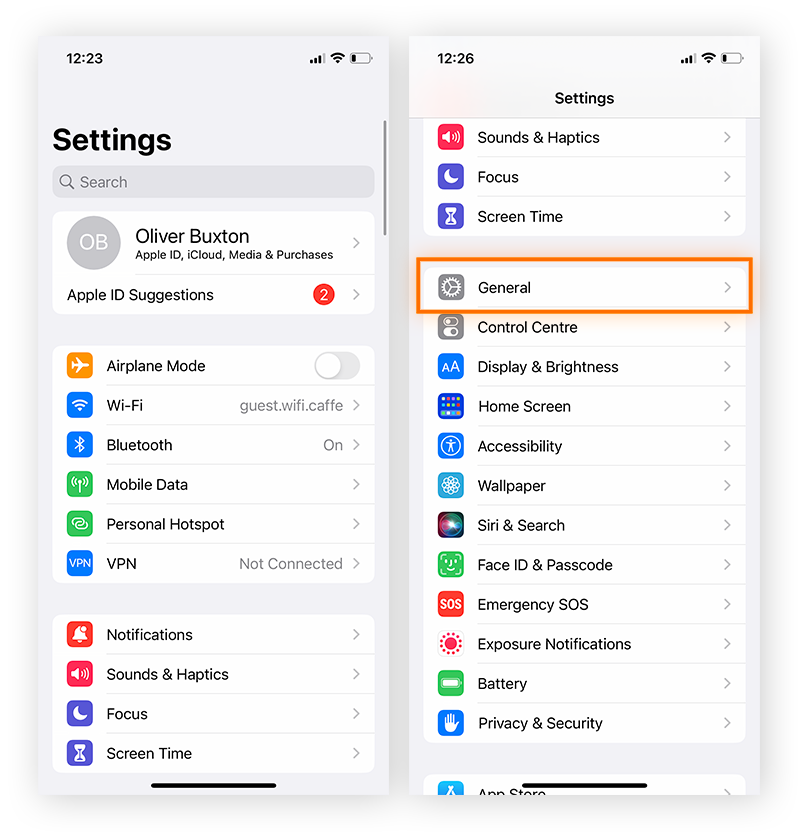
- Open the Settings app on your iPhone.
- Scroll down and tap Apps > Safari.
- Scroll to Clear History and Website Data.
- Tap it, then choose your timeframe (last hour, today, or all history).
- Confirm by tapping Clear History and Data.
This clears cache, cookies, and history in one go. If you use Safari profiles, pick the right one.
For cookies and cache only (keep history):
- Go to Settings > Apps > Safari.
- Tap Advanced > Website Data.
- Tap Remove All Website Data.
- Confirm Remove Now.
This keeps your browsing history but wipes site data. It’s great if you want to stay logged in on some sites.
Tip: Do this from time to time, especially after heavy browsing. It affects all iCloud-linked devices.
How to Clear Cache on iPhone for Other Browsers Like Chrome
Many use Chrome or Firefox. Steps differ from Safari.
For Chrome:
- Open the Chrome app.
- Tap the three dots at the bottom right.
- Go to Settings > Privacy and security > Delete browsing data.
- Pick a time range (e.g., all time).
- Check Cookies and site data and Cached images and files.
- Tap Delete data.
This clears cache fast. Chrome lets you select items carefully.
For Firefox:
- Open Firefox.
- Tap the menu (three lines) at the bottom.
- Go to Settings > Privacy > Data Management.
- Choose Web Site Data > Clear All or select specifics.
Other browsers follow similar paths. Check their settings for “clear data.”
How to Clear Cache for Individual Apps on iPhone
iPhone does not have a direct “clear cache” button for most apps. Use these workarounds for how to clear cache on iPhone in apps.
Method 1: Offload the App
- Go to Settings > General > iPhone Storage.
- Find the app taking space.
- Tap it, then Offload App.
- Confirm. This removes the app but keeps data.
- Reinstall from App Store to refresh.
Offloading clears temp files without losing logins or progress.
Method 2: Delete and Reinstall
- Press and hold the app icon.
- Tap Remove App > Delete App.
- Go to App Store and reinstall.
This fully clears cache and data. Use it for stubborn apps. Back up important info first.
Method 3: Restart Your iPhone
A simple restart flushes some system cache. Hold power button, slide to power off, then turn on.
Do this weekly for smooth performance.
Benefits of Clearing Cache Regularly
- Faster loading times for sites and apps.
- More free storage space.
- Fixes glitches like stuck pages or login issues.
- Better privacy by removing old cookies.
Users report smoother experience after clearing. It’s a quick digital cleanup.
Common Questions About How to Clear Cache on iPhone
Does clearing cache delete photos or messages? No. It only affects browser and app temp files.
Will I lose saved passwords? No. Passwords stay in iCloud Keychain.
How often should I do this? Every 1-3 months, or when your phone slows.
Does it work on all iOS versions? Yes, steps are similar in recent updates.
What if nothing changes? Try updating iOS or checking storage for other culprits.
Conclusion
How to clear cache on iPhone is an easy way to keep your device running well. Follow the steps for Safari, other browsers, or apps to see quick improvements. It takes just minutes and brings real benefits like speed and space.
Regular maintenance like this helps your iPhone last longer. Give it a try today!
Ready to make your iPhone feel new again? What issue are you fixing with how to clear cache on iPhone?
References
- Apple Support: Clear your cache and cookies on iPhone – https://support.apple.com/guide/iphone/clear-your-cache-and-cookies-iphacc5f0202/ios
- CNET: Happy New Year! Now Clear Your Cache – https://www.cnet.com/tech/services-and-software/iphone-browser-clear-cache/
- Biz Reporterz (related tech guide): https://bizreporterz.com/screen-record-on-iphone/
- Additional insights from ZDNET and user forums on iOS cache management.