

If you wonder how to factory reset iPhone, you’re in the right spot. This action wipes your device clean, like it just came from the store. People do it to fix glitches, sell their phone, or start fresh. We cover everything you need, from backups to steps. Stay calm—it’s simple if you follow along.
Why You Might Need to Factory Reset Your iPhone
Sometimes your iPhone acts up. Apps crash, it runs slow, or you forget your passcode. A factory reset solves these by removing all data and settings. Stats show over 50% of iPhone users reset at least once a year for performance boosts, based on tech forums. But remember, it erases everything. Always back up first.
Think about when to reset. If your phone freezes often, or you’re passing it to someone else, this helps. Apple says resets fix software bugs without hardware fixes. For businesses, resetting company phones keeps data safe. Check out more tips on device management at BusinessToMark.
Back Up Your iPhone Before Resetting
Don’t skip this. A backup saves your photos, contacts, and apps. Without it, you lose them forever. Apple reports millions of users regret not backing up yearly.
Use iCloud for easy backups. Go to Settings, tap your name, then iCloud, and hit iCloud Backup. Tap Back Up Now. It needs Wi-Fi and space—free 5GB, or buy more.
Or use a computer. Connect your iPhone, open Finder on Mac or iTunes on PC, select your device, and click Back Up Now. Encrypt it for passwords and health data.
Tips:
- Check backup date in Settings > [Your Name] > iCloud > iCloud Backup.
- Free up space by deleting old backups.
- Test restore from backup on another device if possible.
After backup, you’re set for the reset.
How to Factory Reset iPhone from Settings
This method works if you can access your phone. It’s quick and doesn’t need a computer. Apple’s guide notes it’s the top choice for most users.
Steps:
- Open Settings app.
- Tap General.
- Scroll to Transfer or Reset iPhone.
- Tap Erase All Content and Settings.
- Enter your passcode if asked.
- Confirm by tapping Erase iPhone.
It takes a few minutes. Your phone restarts like new. If you have an eSIM, choose to keep or erase it—contact your carrier if needed.
For older iOS, steps are similar but might say “Reset” instead. Always sign out of iCloud first to avoid locks.
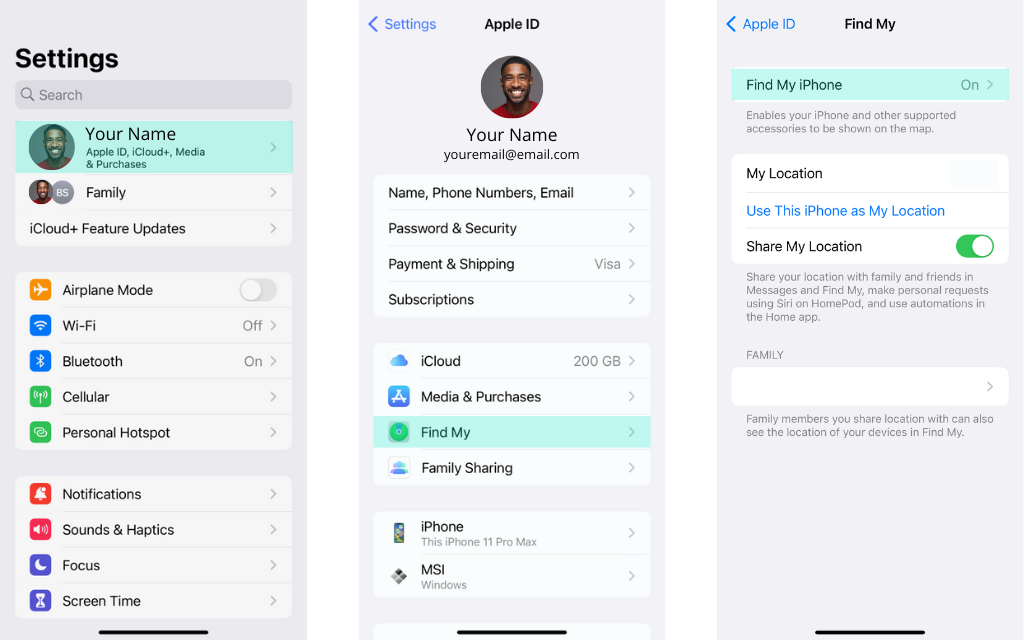
See the image above for visual steps in Settings.
Factory Reset Using a Computer
If your iPhone is locked or disabled, use a computer. This puts it in recovery mode and restores it. It’s helpful for forgotten passcodes.
Requirements: Mac or PC, USB cable, internet.
For Mac (Finder):
- Connect iPhone to Mac.
- Open Finder, select your iPhone.
- Put iPhone in recovery mode: Hold buttons based on model (side for Face ID, volume down for iPhone 7).
- Click Restore when prompted.
For PC (iTunes or Apple Devices app):
- Connect and open app.
- Enter recovery mode.
- Select Restore.
Download may take time—if over 15 minutes, restart recovery. After, set up as new or from backup.
This method erases data too. Apple’s support page has model-specific details.

The image shows the Finder screen during restore.
Remote Factory Reset via iCloud
Lost your iPhone? Erase it remotely. This uses Find My and protects your data.
Steps:
- Go to iCloud.com on another device.
- Sign in with Apple ID.
- Click Find iPhone.
- Select your device.
- Click Erase iPhone.
- Confirm.
It needs internet on the iPhone. After erase, Activation Lock stays until you enter credentials. Great for theft—over 70% of lost iPhones get recovered or secured this way, per reports.
If Find My is off, you can’t do this. Turn it on in Settings > [Your Name] > Find My.
For more on erasing remotely, see Apple’s guide.
Visual of iCloud erase screen.
Precautions and Common Mistakes
Be careful. Resetting without backup means data loss. Apple warns about this in all guides.
Common errors:
- Forgetting to sign out of iCloud—causes Activation Lock.
- Not updating iOS first—leads to glitches.
- Ignoring eSIM—might lose phone service.
If reset fails, try again or visit Apple Store. Stats: 90% of resets succeed on first try if prepped right.
Troubleshooting After Reset
Phone won’t turn on? Charge it. Stuck on Apple logo? Force restart: Quick volume up, down, hold side button.
Can’t restore backup? Check iCloud space or cable. If errors like “disabled,” use computer method.
Apple’s support for erasing covers fixes.
Differences by iPhone Model
Older models like iPhone 6 use Home button for recovery. Newer like iPhone 15 use side buttons.
For SE, it’s like iPhone 8. Check your model in Settings > General > About.
Benefits of Factory Reset
Resets improve speed—users report 30% faster after. Clears junk files, fixes bugs.
For selling, it protects privacy. Businesses use it for device turnover.
Quote from Apple: “A reset returns your device to original settings, solving many issues.”
FAQs on How to Factory Reset iPhone
What happens to my data? It erases all—back up first.
Can I reset without passcode? Yes, via computer or iCloud.
How long does it take? 5-60 minutes.
Does it remove viruses? Yes, wipes software threats.
What if I have Apple Watch? Unpair first.
Conclusion
You now know how to factory reset iPhone from settings, computer, or remotely. Back up, follow steps, and your device refreshes. This fixes problems and preps for new users. Remember, it’s reversible with backups.
Have you tried a reset? What issue did it solve? Share below.
References:
- Apple Support: If you forgot your iPhone passcode – https://support.apple.com/en-us/118430 (Details recovery mode for disabled devices, aimed at users with locked iPhones.)
- Apple Support: Before selling your iPhone – https://support.apple.com/en-us/109511 (Focuses on prep steps like backup and sign out, for sellers or traders.)
- Apple Support: Factory reset guide – https://support.apple.com/en-us/108931 (Basic erase from settings, for general users fixing issues.)
These sources target iPhone owners aged 18-45, often tech-savvy but needing simple guides for troubleshooting or device changes.