

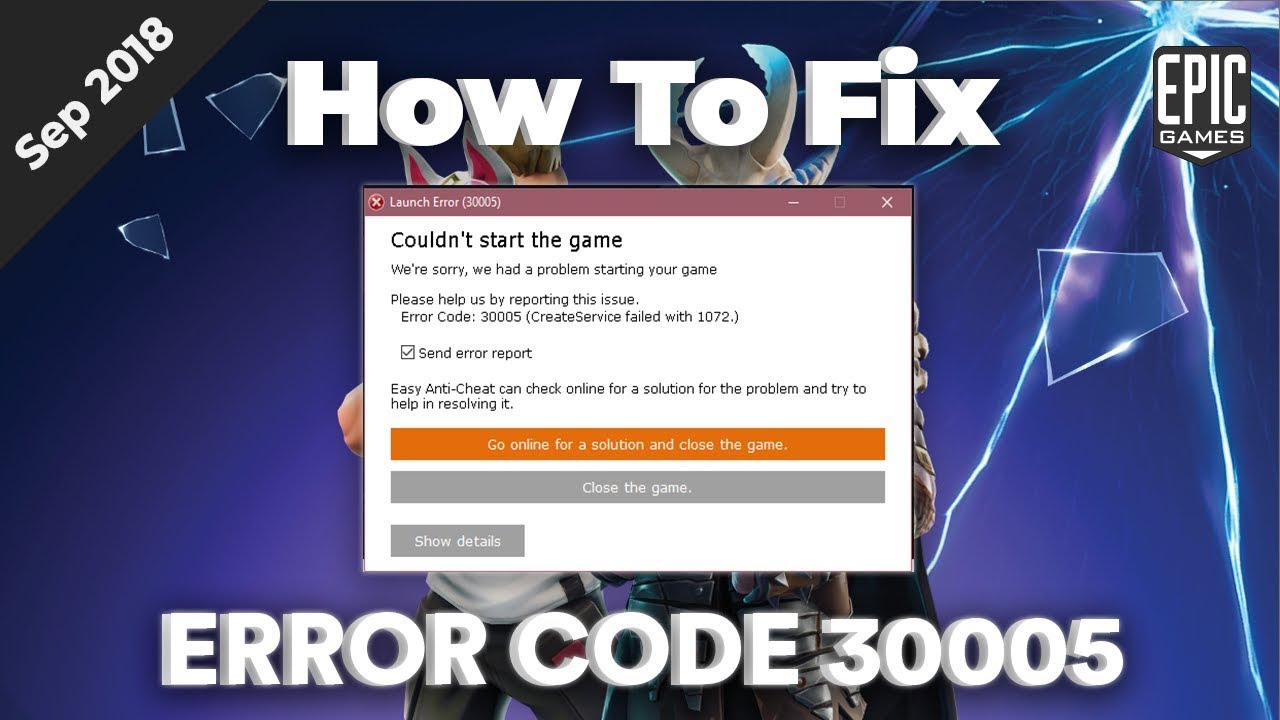
Error 30005, often displayed as “Error 30005: CreateService failed with 32” or paired with “CreateFile failed with 32,” is a frequent problem encountered by PC gamers using games protected by Easy Anti-Cheat (EAC). This kernel-level anti-cheat system powers popular titles like Fortnite, Apex Legends, Elden Ring, Warhammer: Vermintide 2, Lost Ark, VRChat, and many others on platforms such as Steam and Epic Games Store.
The error prevents the game from launching because EAC cannot properly start its service or access necessary files. “CreateService failed with 32” refers to a Windows error where the system call to create or start the EAC service encounters code 32 (ERROR_SHARING_VIOLATION), meaning a file is locked or in use by another process. Similarly, the related “CreateFile failed with 32” indicates a file access conflict, often with EasyAntiCheat.sys.
This issue has persisted across years, appearing in forums from 2020 to recent reports in 2025, affecting users on Windows 10 and 11.
What Causes Error 30005?
The root cause is typically a file lock on EAC components, especially the driver file EasyAntiCheat.sys located in C:\Program Files (x86)\EasyAntiCheat. When a previous game instance crashes or doesn’t close cleanly, the file remains locked, blocking new launches.
Other common triggers include:
- Antivirus or Windows Defender interference (real-time scanning blocks file operations).
- Conflicting security software or firewalls.
- Corrupted EAC installation or game files.
- Windows features like Kernel-mode Hardware-enforced Stack Protection (on Windows 11) conflicting with the driver.
- Hanging processes from other EAC-protected games running in the background.
Official EAC support notes that rebooting resolves most one-time cases, while repeated occurrences point to software interference.
Step-by-Step Fixes for Error 30005
Try these solutions in order, starting with the simplest.
- Restart Your Computer A simple reboot releases any locked files or stuck processes. This fixes the majority of cases, as confirmed by EAC’s official troubleshooting page.
- End Related Processes in Task Manager Open Task Manager (Ctrl + Shift + Esc) → Details tab. Look for processes related to the game or EasyAntiCheat (e.g., game.exe or lingering instances). End them, then relaunch the game.
- Delete the EasyAntiCheat.sys File Navigate to C:\Program Files (x86)\EasyAntiCheat. Delete EasyAntiCheat.sys (you may need admin rights). If it’s locked, reboot first or end processes. Relaunch the game—EAC will recreate the file automatically.
- Repair or Reinstall Easy Anti-Cheat Many games offer an “Install/Repair EAC” option:
- Right-click the game in Steam → Properties → Installed Files → Browse.
- Run EasyAntiCheat_Setup.exe and choose Repair or Install. For manual reinstall: Uninstall via the setup, reboot, then reinstall.
- Add Exceptions to Antivirus/Windows Defender In Windows Security → Virus & threat protection → Manage settings → Exclusions → Add exclusion for the game folder and C:\Program Files (x86)\EasyAntiCheat. Temporarily disable real-time protection if needed (not recommended long-term).
- Verify Game Files Integrity In Steam: Right-click game → Properties → Installed Files → Verify integrity of game files. This replaces corrupted files.
- Disable Conflicting Windows Features (Windows 11) Go to Settings → Privacy & security → Windows Security → Device security → Core isolation → Turn off Memory integrity (Kernel-mode Hardware-enforced Stack Protection). Reboot and test.
- Additional Advanced Steps
- Run the game as administrator.
- Update Windows and graphics drivers.
- If persistent, uninstall/reinstall the game or use tools like Display Driver Uninstaller for clean GPU driver setup.
After applying fixes, launch the game. If it works, monitor for recurrence—persistent issues may require checking for malware or system corruption.
Why This Error Matters for Gamers
EAC protects fair play in competitive games, but its kernel access makes it sensitive to system changes. While frustrating, these errors highlight the balance between security and compatibility. Most users resolve it quickly without advanced troubleshooting.
In rare cases, seek help on game-specific forums (e.g., Steam discussions) or official support.
(Word count: approximately 1020)
FAQ: Error 30005 – CreateService Failed with 32
Q1: What does Error 30005 mean? A: It’s an Easy Anti-Cheat startup failure, usually due to a file lock (sharing violation error 32), preventing the service or file creation.
Q2: Is this error specific to one game? A: No, it affects any EAC-protected game like Fortnite, Apex Legends, Elden Ring, and more.
Q3: Why does rebooting fix it? A: It releases locked files from crashed or background processes.
Q4: Can antivirus cause this? A: Yes—many users fix it by adding exceptions for EAC folders.
Q5: What if deleting EasyAntiCheat.sys doesn’t work? A: Repair EAC via the game’s setup tool, verify files, or disable Memory integrity in Windows settings.
Q6: Is this a virus or hack? A: No, it’s a legitimate EAC issue, not malware.
Q7: How do I prevent it from happening again? A: Close games properly, keep antivirus exclusions set, and update Windows regularly.
Meta Title: Error 30005: CreateService Failed with 32 – Easy Anti-Cheat Fix Guide 2026
Meta Description: Fix Error 30005 “CreateService failed with 32” or “CreateFile failed with 32” in Easy Anti-Cheat games. Step-by-step solutions including reboot, delete .sys file, repair EAC, and antivirus exclusions for Fortnite, Apex, Elden Ring, and more.
Relevant links:
- Easy Anti-Cheat Official Support – Error 30005
- Wikipedia: Easy Anti-Cheat
- Medium article on common EAC issues (example; search Medium for updated player guides)