
What Is Excel?
Microsoft excel serves as a spreadsheet program within the Microsoft Office suite. It arranges data in rows and columns, forming a grid where you enter text, numbers, or formulas. Cells hold individual pieces of information, and you link them through calculations.
Developers first launched excel for Macintosh in 1985, aiming to outpace competitors like Lotus 1-2-3. It quickly gained traction for its user-friendly interface and robust features. Today, it integrates seamlessly with Microsoft 365, allowing cloud-based access across devices.
Users rely on excel for everything from basic lists to advanced modeling. Its grid structure recalculates values automatically when changes occur, saving time and reducing errors. For instance, input sales figures, and excel instantly computes totals or averages.
The History of Excel: From Inception to Modern Dominance
Microsoft introduced excel amid the rise of personal computing. In 1982, the company released Multiplan, but it struggled against established players. By 1985, excel debuted on Mac, featuring graphical elements that set it apart.
The Windows version arrived in 1987, marking a shift to broader platforms. Key milestones include:
- 1993: Introduction of Visual Basic for Applications (VBA), enabling custom automation.
- 2007: Adoption of the Ribbon interface and .xlsx file format for better compatibility.
- 2013: Power Pivot and Flash Fill enhanced data handling.
- 2016: Power Query streamlined imports from various sources.
- 2023: Python integration allowed advanced scripting directly in sheets.
By 2026, excel boasts over 1.2 billion users worldwide, evolving into a cloud-centric tool with AI enhancements like Copilot. This progression reflects Microsoft’s commitment to innovation, making excel indispensable in offices, schools, and homes.
Early challenges involved compatibility with rivals, but excel‘s focus on usability won out. For example, it borrowed the fictional February 29, 1900, date from Lotus for backward support, a quirk that persists today.
Core Features That Make Excel Indispensable
Excel shines through its array of tools designed for efficiency. Start with basic functions: sum, average, and count handle everyday math. More advanced ones, like VLOOKUP or INDEX-MATCH, retrieve data from large sets.
Visual aids elevate presentations. Create charts—line, bar, or pie—with a few clicks. Conditional formatting highlights cells based on rules, such as coloring negative values red.
Pivot tables summarize vast datasets. Drag fields to rows or columns, and excel generates reports instantly. For instance, analyze sales by region:
- Select your data range.
- Insert a pivot table.
- Add “Region” to rows and “Sales” to values.
- Filter by date for targeted insights.

This feature alone saves hours, turning raw numbers into actionable stories.
Collaboration tools let teams edit simultaneously via OneDrive. Share links, track changes, and comment directly in cells. Security features, including password protection, safeguard sensitive info.
AI integrations, such as Copilot, suggest formulas or detect trends. Type a query like “summarize expenses,” and it generates results. With 484 built-in functions across categories like statistical and financial, excel adapts to diverse needs.
Getting Started with Excel: Step-by-Step Basics
Beginners find excel approachable. Download it through Microsoft 365 or use the free web version. Open a new workbook to see the familiar grid.
Follow these steps to build your first sheet:
- Enter Data: Click a cell and type. Press Enter to move down.
- Format Cells: Right-click for options like bold or currency.
- Add Formulas: Start with “=” in a cell, then reference others (e.g., =A1+B1).
- AutoFill: Drag the corner handle to copy patterns across rows.
Templates accelerate setup. Choose from budgets, calendars, or invoices via the File menu. For visual learners, explore Microsoft’s tutorials for hands-on practice.
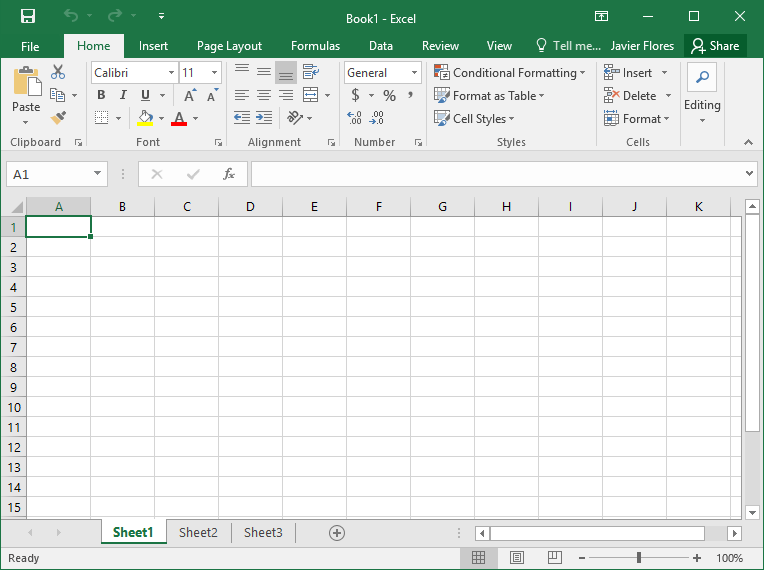
Customize the Ribbon for quick access to favorites. Shortcuts like Ctrl+C (copy) or Ctrl+Z (undo) speed workflows. Practice with sample data to build confidence—excel forgives mistakes with its undo feature.
Advanced Techniques to Elevate Your Excel Skills
Once basics click, advance to macros and VBA. Record actions to automate repetition: Go to View > Macros > Record. Play back to repeat tasks.
Dynamic arrays spill results across cells. Use UNIQUE or SORT for clean lists without manual sorting.
Data validation restricts inputs, preventing errors. Set rules like whole numbers only or dropdown lists.
For optimization, Solver add-in finds best values under constraints—ideal for budgeting.
Integrate external data: Connect to web sources or databases via Get Data. Python support lets coders run scripts in cells for complex analyses.
Tips for pros:
- Use named ranges for clearer formulas.
- Employ slicers with pivot tables for interactive filters.
- Leverage LAMBDA for custom functions without VBA.
These techniques transform excel from a calculator into a decision-making powerhouse.
Excel on Mobile: Productivity Anywhere
The mobile app brings excel to phones and tablets, with over 1 billion downloads. Edit sheets on the go, syncing with desktop via Microsoft account.
Key mobile features:
- Touch-friendly interface for drawing annotations.
- Built-in templates for budgets and trackers.
- Collaboration: Invite others to view or edit.
Download from the Google Play Store for Android. It requires 1GB RAM and works on screens up to 10.1 inches for free editing.

Users praise its stability for quick tasks, though some note bugs like data loss—regular saves help. For business, it integrates with Teams for seamless sharing.
Benefits and Limitations of Using Excel
Excel boosts productivity: Automate reports, visualize data, and collaborate effortlessly. Statistics show two-thirds of office workers use it daily, spending 38% of their time in it.
Advantages include:
- Cross-platform support: Windows, Mac, iOS, Android.
- Extensive add-ins for specialized tasks.
- Cost-effective with free web access.
However, limitations exist. Precision caps at 15 digits, risking inaccuracies in scientific work. Gene names may convert to dates in biology applications, though settings mitigate this.
Security vulnerabilities from macros require caution—disable unknowns. For massive datasets, databases like SQL outperform excel.
Real-World Use Cases and Examples
In finance, excel models portfolios. Use Solver to optimize investments under risk constraints.
Educators track grades: Input scores, apply averages, and chart progress.
Small businesses manage inventory: Formulas calculate stock levels, alerting low items.
A 2022 survey notes 750 million to 1.2 billion monthly users, underscoring its versatility. Even games like Tetris run in excel via VBA, showcasing creativity.
For more business insights, visit BizReporterz.
Explore official resources at Microsoft Excel for templates. Dive deeper into its evolution on Wikipedia.
FAQs About Excel
What makes excel essential for data work? It offers intuitive tools for organization and analysis, suitable for all levels.
How do I learn advanced excel? Start with Microsoft’s free tutorials and practice VBA.
Is excel free? Yes, the web version is; full features require a subscription.
Can excel handle big data? Up to a point—use Power Query for larger sets.
Why choose excel over alternatives? Its integration and functions provide unmatched depth.
Conclusion: Harnessing Excel for Success
Excel revolutionizes how we interact with data, from simple lists to sophisticated models. Its evolution ensures it remains a top choice for professionals and learners alike.
What project will you tackle with excel next?
References
- Microsoft Excel Official Page – Details features, pricing, and AI tools for business users and individuals seeking productivity boosts.
- Google Play: Microsoft Excel App – Covers mobile usage for on-the-go professionals and students needing quick edits.
- Wikipedia: Microsoft Excel – Provides historical context and technical specs for educators and researchers understanding its broad applications.