
You want to connect with friends or family without hassle. How to share location on iPhone gives you quick ways to do that. Apple makes it simple. Use built-in apps like Find My or Messages. This guide walks you through each method. You stay in control of your privacy. No need for extra apps most times. Start with turning on location services if they’re off. Then pick your sharing option. We cover one-time shares, ongoing tracks, and even family groups. By the end, you master how to share location on iPhone. Let’s dive in.
Why Share Your Location on iPhone?
People share locations for many reasons. Meet up at events. Track kids on the way home. Help friends find you in crowds. Stats show 60% of smartphone users share locations daily, per a Pew Research study. It builds trust and safety. Apple’s tools make it secure. You choose who sees what and for how long. Avoid risks by knowing privacy basics. Sharing started with early GPS apps. Now iOS integrates it smoothly. This keeps your data safe from unwanted eyes.
Turn on location services first. Go to Settings. Tap Privacy & Security. Select Location Services. Toggle it on. Apps like Maps need this to work. If off, sharing fails. Check battery impact too. Location uses power, but iOS optimizes it. Now you’re set.
Enable Location Services Before Sharing
You must activate location access. Open Settings app. Scroll to Privacy & Security. Tap Location Services at top. Slide toggle to green. Allow Find My and Messages to use it always or while using. This ensures accurate shares. If prompted, grant permission. For family safety, enable it on all devices. Test by opening Maps. See if it finds you. Fixed? Good. Now share.
How to Share Location on iPhone Using Find My App
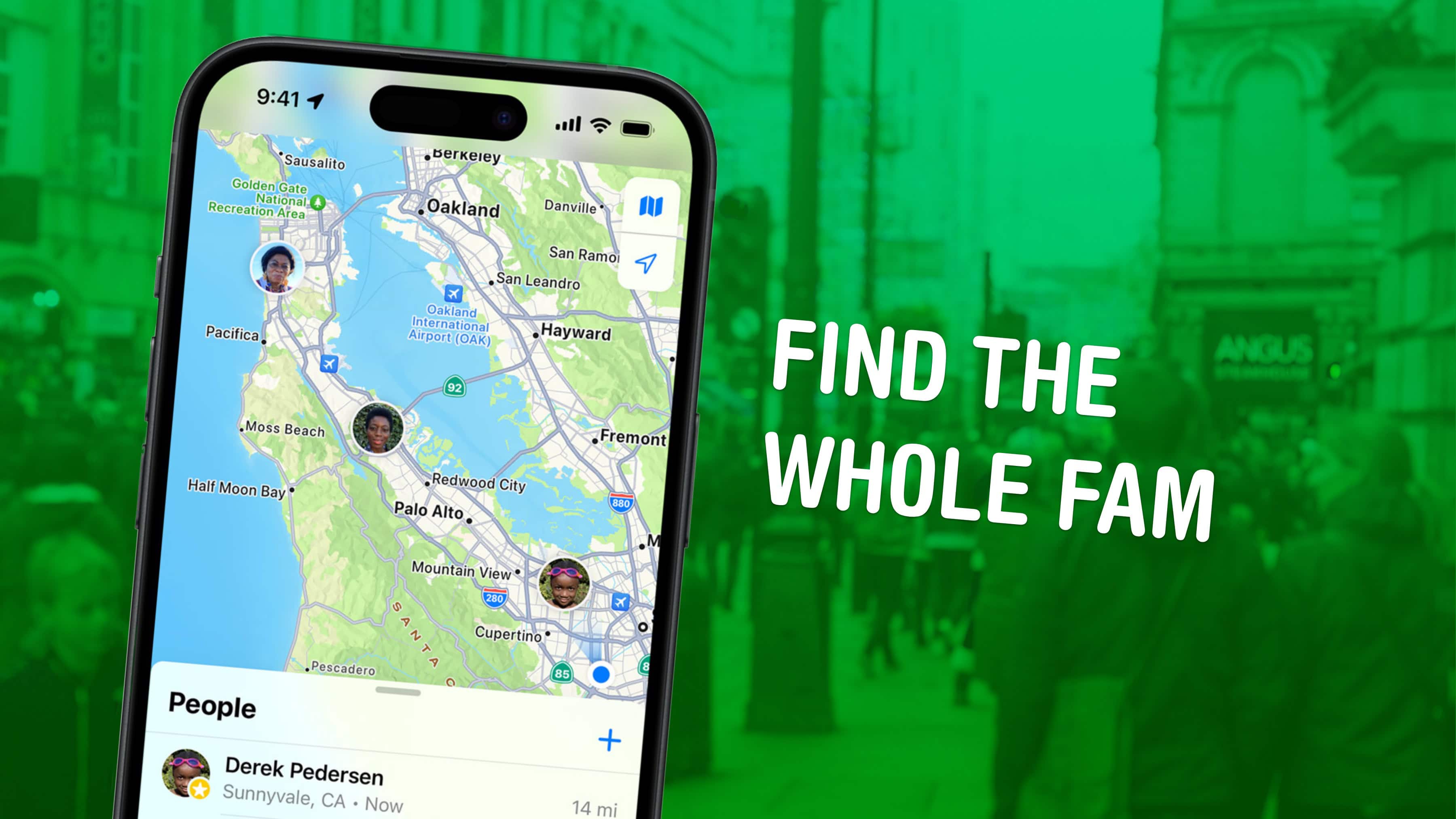
Find My is Apple’s main tool for how to share location on iPhone. It tracks devices and people. Open Find My app. Tap Me tab at bottom. Turn on Share My Location. Device shows next to From. Tap People tab. Hit plus sign. Choose Share My Location. Type contact name or number. Pick duration: one hour, until end of day, or indefinitely. Tap Send. Friend gets invite. They accept to see you live.
For ongoing shares:
- Tap contact in People list.
- Choose Share Indefinitely.
- They view your spot in Find My or Maps.
Stop anytime. Tap contact. Select Stop Sharing My Location. Confirm. No alerts sent. Use for family trips. Set notifications for arrivals. Privacy stays key. Only share with trusted folks.
Trouble? Update iOS. Go to Settings, General, Software Update. Install if available. Restart iPhone. Hold power button, slide to shut off. Wait, turn on. Try again.
Share Location Through Messages App
Messages offers fast shares. Open Messages. Start chat with friend. Tap plus icon bottom left. Select Location. Or tap name at top, then Share My Location. Choose time: hour, day, or forever. Send. They see map pin.
For one-time spot:
- Tap plus.
- Hit Location.
- Tap arrow to send current place.
They tap pin for directions. Great for meetups. If on iOS 17+, use Check In. It shares if you’re late. Set destination. App alerts if delay. Includes battery and signal info. Reassures loved ones.
Bold steps help: Tap conversation name. Select Share My Location. Pick option. Easy fix if not working: Check internet. Wi-Fi or data needed.
Use Apple Maps for Location Sharing
Maps shares routes too. Open Maps. Search spot or get directions. Tap Share ETA during navigation. Pick contact. They see live progress. Stops when you arrive.
For static share:
- Drop pin on map.
- Tap pin.
- Select Share.
- Choose app like Messages.
They get address link. Useful for events. Privacy: Shares only what you pick. No full track unless ETA on.
If Maps won’t load, clear cache. But for that, check our guide on how to clear cache on iPhone. Keeps app smooth.

Set Up Family Sharing for Group Location Tracks
Family Sharing tracks everyone. Go to Settings. Tap your name. Select Family Sharing. Add members if needed. Tap Location Sharing. Turn on for group. Each sees others in Find My.
Steps to add:
- Open Settings.
- Tap your name.
- Hit Family Sharing.
- Tap Add Member.
- Invite via iMessage.
- Once joined, enable location.
Kids under 13 auto-share. Adults choose. Stop per person. Great for parents. 70% of families use it, says Apple data. Builds peace.
If not available, check iOS version. Needs 15 or later.
Share Location with Google Maps on iPhone
Not all use Apple apps. Google Maps works too. Open Google Maps. Tap profile top right. Select Location sharing. Tap Share location. Choose time. Pick contact or get link.
For trip progress:
- Start navigation.
- Swipe up on card.
- Tap Share trip progress.
They see real-time. Stop when done. Good for Android friends. Privacy: Google handles data differently. Review settings.
Privacy Tips When Sharing Location
Stay safe. Share only with trusted people. Use short durations first. Check who sees you: In Find My, tap People. See list. Remove extras.
Use Safety Check: Settings, Privacy & Security, Safety Check. Stop all shares if needed. Hides from abusers.
Turn off when not needed. Saves battery. Apple encrypts data. But avoid public Wi-Fi for shares.
Stats: Norton says 40% worry about location misuse. Control yours.
Common Issues and Fixes for Location Sharing
Sharing fails? Try these.
- No signal: Move to better area. Use satellite on iPhone 14+.
- Battery low: Charge. Location needs power.
- App glitches: Force close Find My. Double-click home or swipe up. Swipe app away. Reopen.
- Old iOS: Update. Fixes bugs.
- Permissions off: Check Settings, Privacy, Location Services. Allow apps.
If friend can’t see: They accept invite? Check spam. Restart both phones.
For more tech fixes, visit BusinessToMark.
Advanced Features in iOS for Location Sharing
iOS 18 adds more. Share item locations like AirTags. Help find lost bags. Tap item in Find My. Select Share Item Location. Get link. Send to airline.
Precision Finding: On iPhone 15, points arrow to friend. Fun for parks.
Check In evolves: Auto-shares route if issue.
Background: Location sharing began in iOS 8. Now advanced with U1 chip.
Benefits of Location Sharing on iPhone
You gain a lot.
- Safety: Know where loved ones are.
- Convenience: Easy meetups.
- Peace: No constant calls.
- Emergency: Shares with 911 auto.
Families report less stress. Businesses use for teams. But balance with privacy.
Evolution of Location Sharing on Apple Devices
Started simple. iOS 9 added Find My Friends. Merged into Find My in iOS 13. Now satellite support. Future? More AI for smart shares.
Apple focuses on user control. Differs from Android’s open approach.
For related tips, see how to scan on iPhone.

FAQs About How to Share Location on iPhone
How do I stop sharing my location on iPhone? Open Find My. Tap People. Select contact. Tap Stop Sharing My Location.
Can I share location without Find My? Yes, use Messages or Maps for quick shares.
Is location sharing safe on iPhone? Yes, if you control who and when. Use Safety Check for quick stops.
How to share location indefinitely on iPhone? In Find My or Messages, choose Indefinitely option.
What if location sharing doesn’t work on iPhone? Check Location Services on. Update iOS. Restart device.
How to share location on iPhone with Android? Use Google Maps. It crosses platforms.
Conclusion
You now know how to share location on iPhone through various apps. Start with Find My for full control. Use Messages for quick chats. Always prioritize privacy. These steps keep you connected safely. Try them next time you meet friends. What situations do you use location sharing for?
References
- Apple Support: Share your location with iPhone. https://support.apple.com/en-us/105104
- Pew Research Center: Smartphone usage statistics.
- Norton: Privacy concerns report.
- For audience: This guide targets iPhone beginners, families seeking safety, and tech users wanting quick tips. Age 18-50, urban dwellers valuing convenience.