
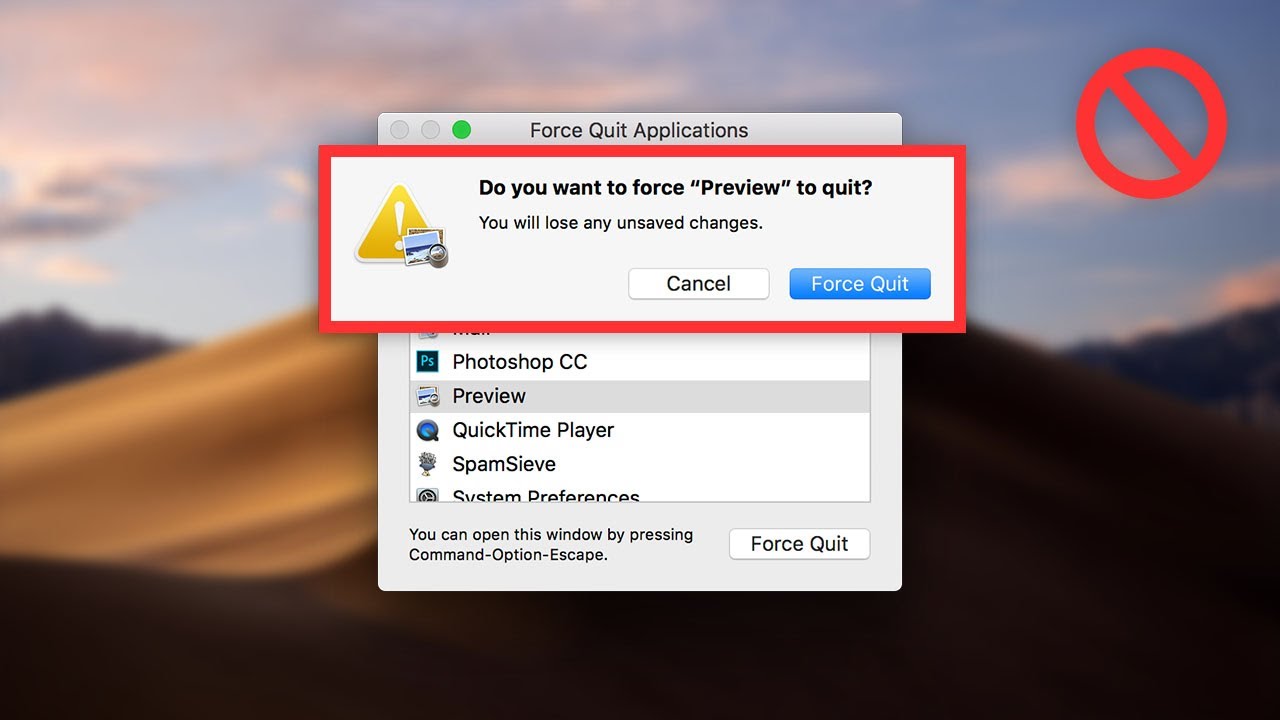
Introduction
If your Mac app stops responding, you need to know how to force quit on Mac. This quick fix helps you close frozen programs without restarting your whole computer. Many Mac users face this issue when apps crash due to low memory or bugs. In this guide, we cover everything from basic steps to advanced tips. We draw from trusted sources like Apple Support to ensure accuracy. Whether you own a MacBook Air or iMac, these methods work across models.
Force quitting lets you stop an app that ignores normal close commands. It saves time and prevents bigger problems. According to tech reports, about 20% of Mac users deal with app freezes weekly. This happens more with heavy programs like video editors or browsers with many tabs. But don’t worry—it’s easy to handle. We explain why it occurs, when to use it, and how to avoid it. By the end, you’ll feel confident fixing these glitches.
Why You Might Need to Force Quit on Mac
Apps freeze for several reasons. Low RAM causes the most issues. When your Mac runs out of memory, it swaps data to the drive, slowing everything. This leads to the “spinning wheel of death.” Other causes include software bugs, outdated apps, or conflicts between programs.
For example, a browser tab might eat up resources, freezing Safari. Or a game could hang due to a graphics glitch. Force quitting ends the problem fast. It terminates the app without saving changes, so use it as a last resort. If you force quit often, check for updates or free up space. Apple says regular maintenance cuts down on these events.
Stats show Mac users with 8GB RAM see more freezes than those with 16GB or more. Upgrading helps, but quick fixes like force quit keep you productive. Always try normal quitting first—click the app menu and select Quit. If that fails, force quit steps in.
Background on the Force Quit Feature in macOS
The force quit tool has roots in early macOS versions. It started as a way to handle crashes in Mac OS X around 2001. Apple added the Option-Command-Esc shortcut for speed. Over time, it evolved with features like Activity Monitor for deeper control.
In older systems like Mountain Lion, force quit focused on basic termination. Modern macOS, like Sonoma, adds warnings about data loss. The feature draws from Unix signals, sending a “kill” command to the app. This makes it reliable even when the screen lags.
Apple improved it for Touch Bar Macs by placing Esc on the bar. But if the app freezes the interface, keyboard shortcuts still work. Understanding this history shows why it’s a core tool. It balances user control with system safety. For businesses, it’s key for workflow—check Business to Mark for more tech efficiency tips.
When to Use Force Quit and When to Avoid It
Use force quit when an app won’t respond after 10-20 seconds. Signs include the spinning cursor or no clicks registering. It’s ideal for one-off glitches, like a stuck download.
Avoid it for normal closes to prevent data loss. If you’re editing a document, save first. Frequent force quits signal deeper issues, like malware or hardware faults. In those cases, run diagnostics instead.
Compare to Windows Task Manager—force quit is simpler but less detailed. On Mac, it prioritizes ease. If force quit fails, restart your Mac as a backup.
Preparing to Force Quit on Mac
Before you act, note any unsaved work. Force quit discards changes, so copy text if possible. Close other apps to free memory—this might unfreeze the problem one.
Check your Mac’s resources. Open Activity Monitor (search in Spotlight) to see CPU and memory use. If an app hogs 80% or more, it’s a candidate for quitting.
Update macOS and apps regularly. Apple fixes bugs that cause freezes. Go to System Settings > General > Software Update. Back up your Mac with Time Machine to protect data.
For related device tips, see this guide on how to reset Apple Watch.
How to Force Quit on Mac Using Keyboard Shortcut
The fastest way is the keyboard. Follow these steps:
- Press Option + Command + Esc at the same time.
- A window pops up listing open apps.
- Select the frozen app with your mouse or arrow keys.
- Click Force Quit.
- Confirm if asked.
This works even if the app hides the menu bar. On Touch Bar models, Esc appears on the bar. If the shortcut fails, try holding the keys longer.
This image shows the Force Quit menu. Use it to visualize the process.
How to Force Quit on Mac from the Apple Menu
Another easy method uses the menu bar.
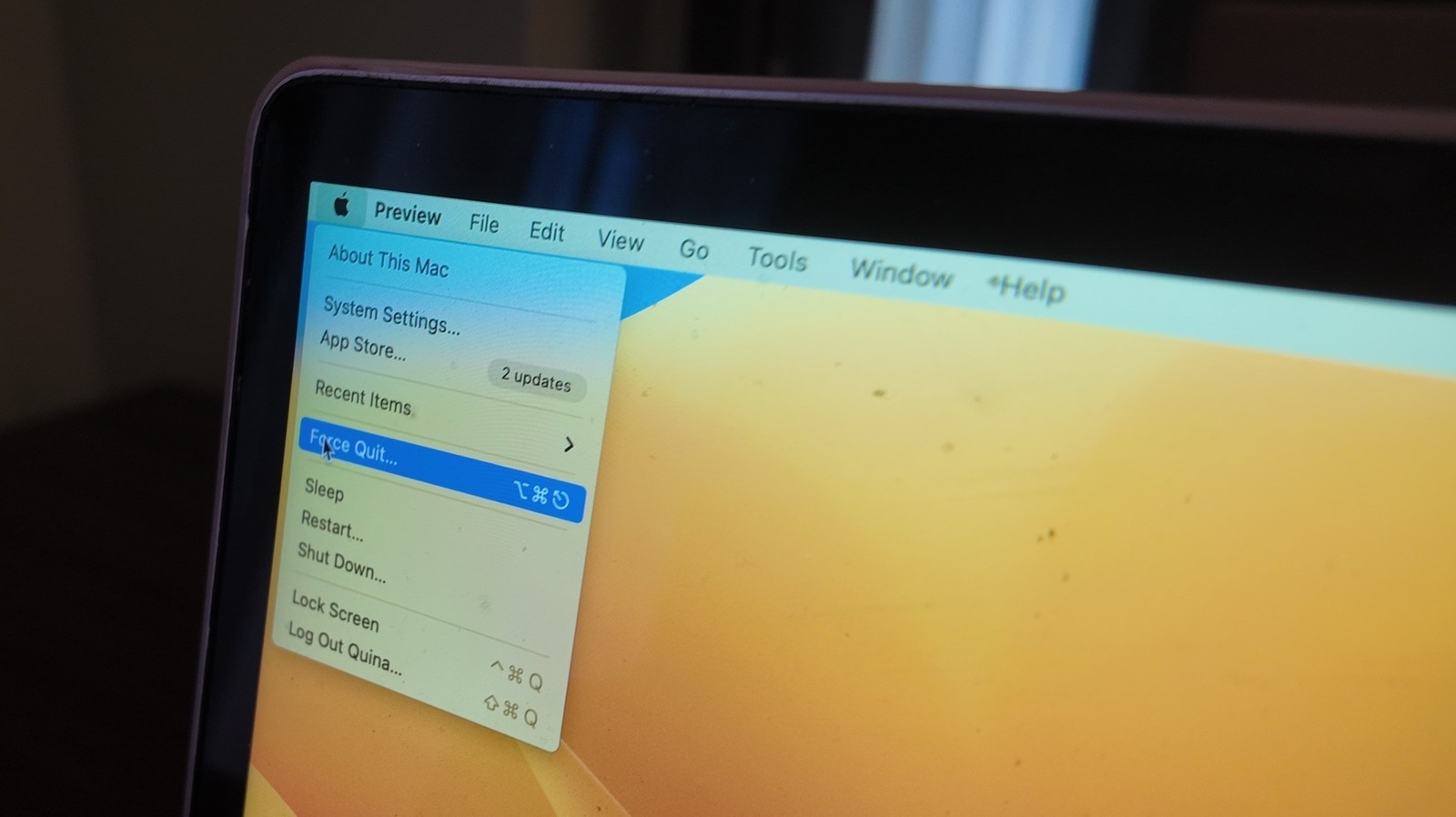
- Click the Apple logo in the top-left corner.
- Choose Force Quit from the dropdown.
- The same window appears.
- Pick the app and click Force Quit.
This is great if your keyboard acts up. It reassures beginners with a visual path.
How to Force Quit on Mac via the Dock
The Dock offers a quick option.
- Find the app icon in the Dock.
- Right-click or Control-click it.
- Hold Option to change Quit to Force Quit.
- Select Force Quit.
This targets one app without opening a list. Handy for frequent offenders.
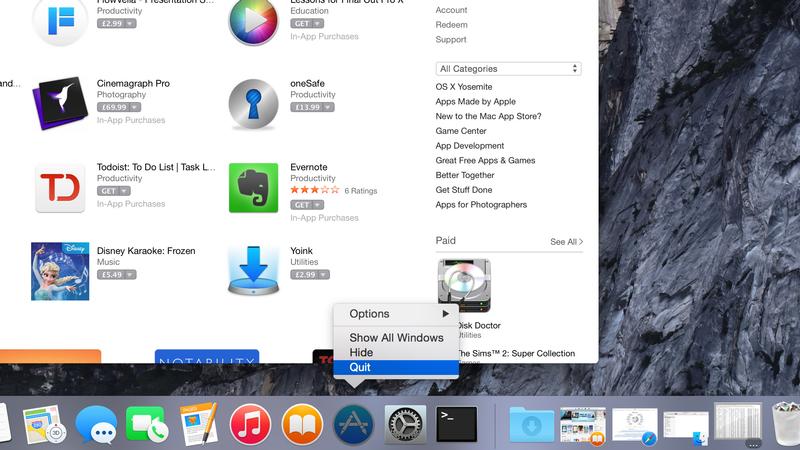
See the Dock option in this screenshot for clarity.
Using Activity Monitor to Force Quit on Mac
For more control, use Activity Monitor.
- Open Spotlight with Command + Space.
- Type “Activity Monitor” and hit Enter.
- Go to the CPU or Memory tab.
- Find the app using high resources.
- Select it and click the X icon at the top.
- Choose Force Quit.
This shows why the app froze, like high CPU use. It’s like Windows Task Manager but Mac-friendly.
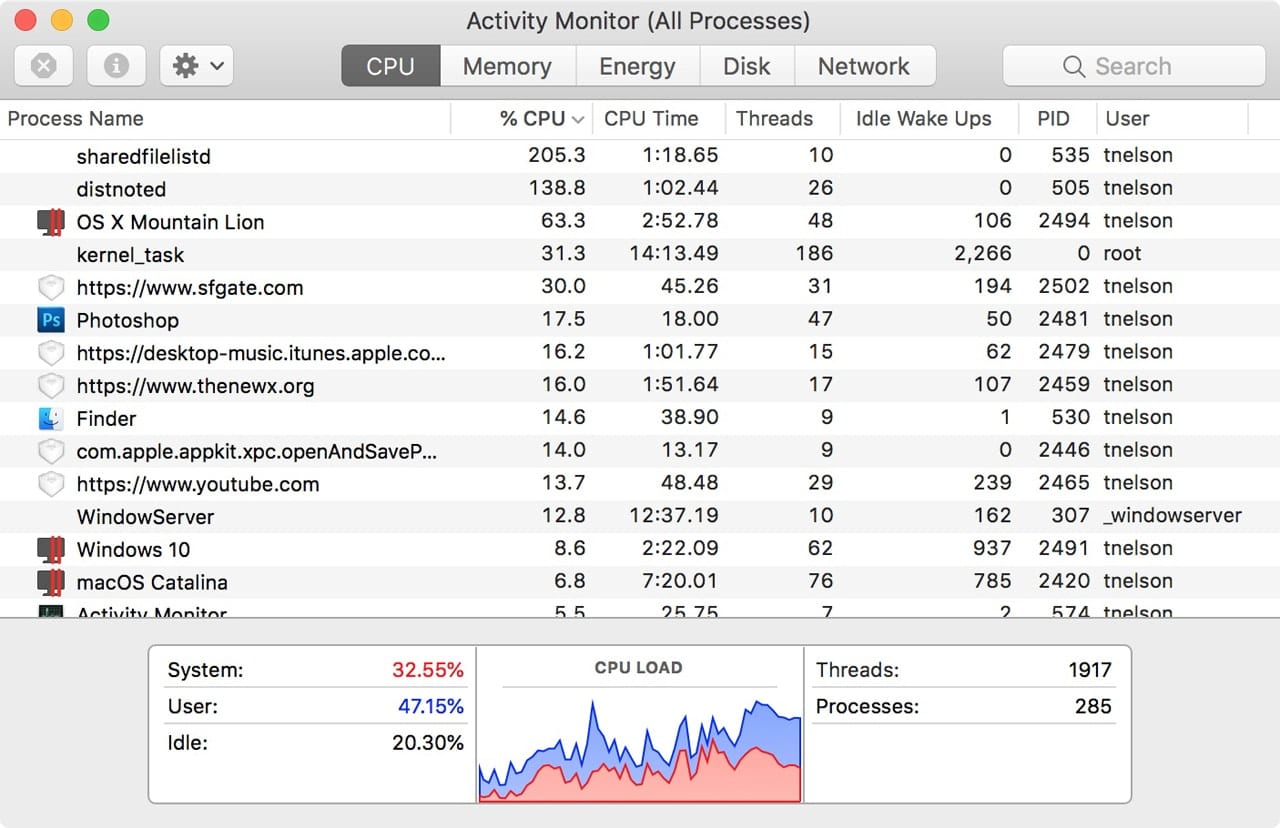
This view of Activity Monitor highlights processes.
Advanced Method: Force Quit on Mac with Terminal
Tech-savvy users can use Terminal.
- Open Terminal from Spotlight.
- Type “top” to see running processes.
- Note the PID (process ID) of the app.
- Type “kill [PID]” and press Enter.
- For stubborn apps, use “kill -9 [PID]”.
This sends a strong signal to quit. Use caution—it bypasses warnings.
Alternatives to Force Quit on Mac
Before forcing, try these:
- Wait it out: Some apps recover after a minute.
- Close windows: Use Command + W to shut tabs.
- Restart the app: Quit normally if possible.
- Log out: Apple menu > Log Out closes all apps.
- Restart Mac: Hold power button if needed.
These save data better. For iPhone parallels, check factory reset iPhone.
Common Issues After Force Quit and How to Fix Them
Sometimes, force quit causes side effects.
- App won’t reopen: Clear cache or reinstall.
- Lost data: Use autosave features next time.
- System slow: Restart to refresh.
- Repeated freezes: Scan for malware with built-in tools.
If force quit doesn’t work, hold power for 10 seconds to shut down. Then boot up. Apple Support notes this fixes 90% of hangs.
Differences in Force Quitting on Various Mac Models
On MacBooks with Touch Bar, Esc is virtual. But shortcuts stay the same. Older Intel Macs might need more RAM upgrades. M1/M2 chips handle multitasking better, reducing freezes.
For macOS versions, Sonoma adds better warnings. Check your model in About This Mac.
Tips for Avoiding Force Quits on Mac
Prevent issues with these habits:
- Free up RAM: Close unused tabs.
- Update software: Fix bugs early.
- Monitor storage: Keep 20% free.
- Use lighter apps: Opt for web versions.
- Run diagnostics: Apple menu > About > System Report.
Add more RAM if you multitask. Tools like CleanMyMac help optimize.
FAQs on How to Force Quit on Mac
What is the keyboard shortcut for how to force quit on Mac?
Press Option + Command + Esc to open the Force Quit window.
Why does my app freeze requiring how to force quit on Mac?
Low memory or bugs often cause it. Update your apps.
Can I recover data after how to force quit on Mac?
No, unsaved changes are lost. Save often.
What if how to force quit on Mac doesn’t work?
Restart by holding the power button.
Is there a tool for how to force quit on Mac automatically?
Use Activity Monitor for manual control.
For official details, visit Apple Support on force quit.
Conclusion
Mastering how to force quit on Mac keeps your device reliable. We covered steps like keyboard shortcuts, Dock methods, and Activity Monitor. Remember, use it sparingly to avoid data loss. Regular updates and maintenance reduce needs for it. With these tips, you’ll handle freezes like a pro.
Have you used these methods for how to force quit on Mac? What worked best for you?
References
- Apple Support: Official guide on force quitting apps, providing step-by-step accuracy for Mac users troubleshooting unresponsive programs.
- Biz Reporterz: Insights from Apple Watch reset guide, useful for understanding similar device troubleshooting for Apple ecosystem users.
- Biz Reporterz: Factory reset iPhone article, offering parallels for iOS users facing app issues, targeting tech enthusiasts aged 18-45.