
Many people want to know how to change your name on Facebook? It’s a common task. You might do it after getting married or to fix a mistake. Facebook makes it simple, but you must follow their rules. This guide shows you the steps. It keeps things easy to read. We use short words and clear lists.
Why You Might Want to Change Your Name
People change their names on Facebook for good reasons. One big reason is life changes. For example, after marriage, you may add a new last name. Or after divorce, you go back to your old name. Some change it for safety. If someone bothers you online, a new name can help. But Facebook wants real names. They say it keeps the site safe.
Another reason is to match your real life. If friends call you by a nickname, you can add it. This helps people find you. Think about it. If your name is wrong, friends might not connect. Changing it fixes that.
Stats show many users update profiles often. But Facebook limits changes to once every 60 days. This stops bad use. If you ask how to change your name on Facebook?, know the rules first.
Facebook’s Name Rules You Need to Know
Facebook has strict rules for names. They want the name you use every day. This means your real name, not fake ones. Here are key rules:
- No symbols like @ or #.
- No numbers in your name.
- No weird capital letters, like ALL CAPS.
- No titles, like Dr. or Sir.
- No words instead of names, like “Cool Guy”.
- Names from one language only.
Why these rules? Facebook says it helps trust. People know who they talk to. If you break rules, they may reject your change. Or ask for ID proof.
The policy started years ago. In 2014, there was big talk about it. Some groups, like artists, wanted stage names. Facebook changed a bit. Now, you can add nicknames. But main name must be real.
If you wonder how to change your name on Facebook? and follow rules, it’s easy.
Step-by-Step: How to Change Your Name on Desktop
Ready to change? Use a computer. Follow these steps. They come from Facebook’s own help.
- Log in to Facebook. Open your browser. Go to facebook.com. Enter your email and password.
- Click your profile picture. It’s in the top right corner.
- Go to Settings & Privacy. Click that, then pick Settings.
- Open Accounts Center. Find it in the menu.
- Select Profiles. Choose your account.
- Click Name. See your current name.
- Enter new name. Type first, middle, last. Make sure it fits rules.
- Review change. Check how it looks.
- Save changes. Enter password if asked.
Done! Your name updates soon. Wait 60 days for next change.
This picture shows the settings page. See where to click.
Tips: Double-check spelling. Wrong spelling means wait 60 days to fix. Use active voice: You change it, not “it gets changed.”
Common issue: If it says error, check internet. Or try later.
How to Change Your Name on Mobile App
On phone? Use the Facebook app. Steps are like desktop but touch screen.
- Open the app. Tap the icon.
- Tap Menu. It’s three lines at bottom right on iPhone, top right on Android.
- Go to Settings & Privacy. Scroll down.
- Tap Settings.
- Tap Accounts Center.
- Tap Profiles. Pick your account.
- Tap Name.
- Enter new details. First, middle, last.
- Tap Review Change.
- Tap Save Changes.
Easy! App makes it fast. If stuck, update app.
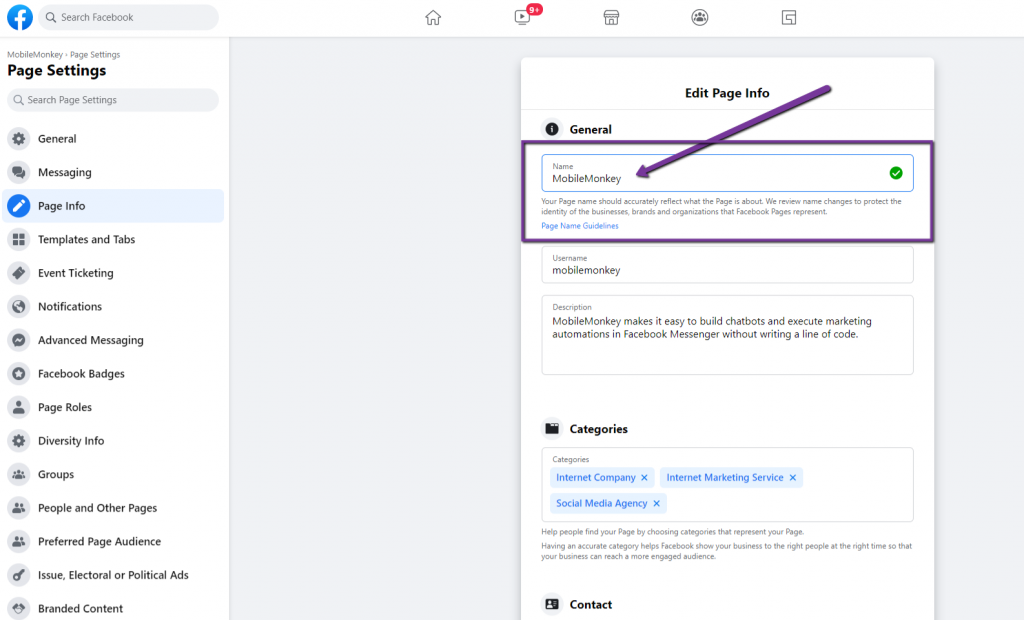
Look at this screenshot. It helps see the mobile view.
Reassuring tip: Facebook checks changes. If okay, it goes live quick.
Adding a Nickname or Other Name
Don’t want full change? Add a nickname. Friends see it next to main name.
How? Go to Settings like before. In Name, find “Other Names.” Add nickname, maiden name, or pro name. Choose who sees it: all, friends, or private.
Example: If married, add old last name. Helps old friends find you.
Rule: Nickname can’t break main rules. No symbols.
This feature helps. Many use it after life events.
Common Mistakes When Changing Your Name
People make errors. Avoid them for smooth change.
- Changing too often. Wait 60 days. If not, Facebook blocks.
- Using fake names. Must be real. No “Super Hero.”
- Adding symbols. Like “John$ Doe.” Not allowed.
- Wrong capitalization. “jOhN dOe” looks odd, rejected.
- Forgetting password. Need it to save.
Tip: Read rules first. Link to Facebook’s help on name changes. It’s official.
Another mistake: Not updating linked apps. Like Instagram if connected.
What If Facebook Rejects Your Name Change?
Rejected? Don’t worry. Common reasons: Breaks rules or needs proof.
Steps to fix:
- Check email. Facebook sends why.
- Appeal. Go to help center. Submit form.
- Upload ID. Like driver’s license. Shows real name.
- Wait. They review in days.
If legal change, show papers. From USA.gov name change guide, get court order first.
Reassuring: Most appeals work if name is real.
How to Set a Single Name on Facebook
Want one name only? Normal way, Facebook needs first and last. But trick: Act like from Indonesia. There, single names okay.
From WikiHow guide:
- Use VPN. Pick Indonesia server. Paid like NordVPN best.
- Change location. In profile, set hometown to Jakarta.
- Edit name. Remove last name.
Risk: If caught, account ban. Use carefully.
Tip: For business, use page not profile. Check bizreporterz.com for more tips on online presence.

This image shows preview of new name.
Linking Legal Name Changes to Facebook
Changed name legally? Update Facebook too.
First, do legal steps. In US, for marriage: Get certificate. For court: File petition.
Notify places: Social Security, DMV, etc.
Then, change on Facebook. If they ask proof, show legal docs.
This keeps everything match. Helps avoid issues.
Tips for a Smooth Name Change
Here are extra tips:
- Backup profile. Save friends list first.
- Tell friends. Post update so they know.
- Check privacy. After change, review who sees info.
- Use real name. Avoid problems.
- Update email. If name in email, change that too.
These make process easy.
FAQs About Changing Your Name on Facebook
How to change your name on Facebook? Follow steps above.
Can I change often? No, every 60 days.
What if I need ID? Upload government one.
Is single name possible? Yes, with location trick.
Why rules strict? For safety and trust.
Conclusion
You now know how to change your name on Facebook. It’s simple if you follow steps and rules. Update for life changes or fixes. Remember 60-day wait and real name policy. This guide gives all you need.
Have you tried changing your name on Facebook? What was your reason?
References
- WikiHow: Guide on single name accounts – Useful for special cases.
- Facebook Help: Official editing info – Direct steps from platform.
- USA.gov: Legal name change – For real-world updates.
Audience: This suits adults updating after marriage or for privacy. Easy read for all ages. Focus on helpful info.