
Introduction: Getting Started with Google Sheets
If you’re wondering how to use Google sheets ?, you’ve come to the right place. Google Sheets is a free, powerful tool for organizing numbers and information. It works right in your web browser. You don’t need to install anything. This guide will show you the simple steps to become a Sheets pro. We will cover everything from making your first sheet to using smart formulas.
What is Google Sheets?
Google Sheets is part of Google’s free apps, like Docs and Slides. It is a spreadsheet program. You can use it to make lists, track budgets, and study data. The best part is it saves your work automatically online. You can also share it and work with others at the same time. It’s a great tool for school, work, or personal projects.
Your First Steps: How to Create and Set Up a Sheet
Let’s start at the very beginning. Here is how to use Google sheets ? from scratch.
-
Go to Google Sheets: Open your web browser. Go to sheets.google.com. Sign in with your Google account.
-
Start a New Sheet: Click the colorful “+” button that says “Blank.” A new, empty spreadsheet will open.
-
Name Your Sheet: Click on “Untitled spreadsheet” at the top. Type a name for your project, like “My Budget” or “Class Schedule.”
-
Understand the Layout: Your screen is a grid of boxes called cells. Each cell has an address, like A1 (Column A, Row 1). You click a cell to type in it.
Pro Tip: Check out this guide on basic functions and formulas to see what’s possible once you learn the basics.
The Essential Toolbar: Your Command Center
The toolbar at the top has all the buttons you need. Here are the most important ones:
-
File: Save, print, or make a copy.
-
Edit: Undo, redo, copy, and paste.
-
View: Zoom in or hide parts of the toolbar.
-
Insert: Add charts, pictures, or new rows.
-
Format: Change how your text and numbers look (bold, colors, borders).
-
Data: Sort your information A-Z or filter to see only certain data.
-
Tools: Check spelling or use special tools.
-
Help: Find quick answers.
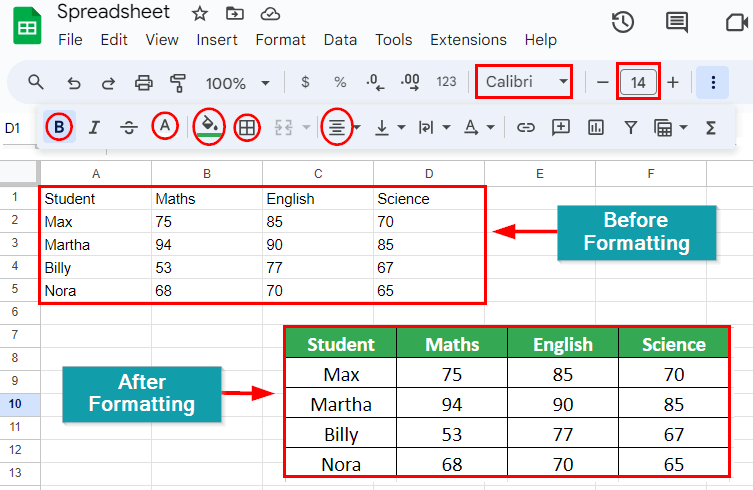
Entering and Formatting Your Data
Making your sheet look good is easy.
-
To Type: Click a cell and start typing. Press “Enter” to move down.
-
To Make Text Bold: Select the text and click the B icon.
-
To Change Colors: Use the paint bucket icon to fill cells.
-
To Adjust Size: Click the border between column letters (like A and B) and drag to make it wider.
Remember: Keeping your data neat makes it easier to read and use later.
Basic Calculations: How to Use Simple Formulas
This is where Sheets gets smart. Formulas do math for you. They always start with an equals sign (=).
-
Add Numbers: In a cell, type
=5+3and press Enter. It will show8. -
Add Cell Values: Type
=A1+B1to add the numbers in those two cells. -
Use SUM: To add a whole column, type
=SUM(A1:A10). This adds cells A1 through A10.
For a deep dive into over 100 options, visit this external resource on 100 functions and formulas.
Mastering the Must-Know Functions
Functions are pre-built formulas for common tasks.
-
=SUM(): Adds a range of cells. -
=AVERAGE(): Finds the mean of numbers. -
=MAX()and=MIN(): Finds the largest or smallest number. -
=COUNT(): Counts how many cells have numbers.
To use them, type =, then the function name, and the cell range in parentheses. Example: =AVERAGE(C2:C100).
Sharing and Teamwork: Collaborate in Real-Time
Sharing is what makes Google Sheets special.
-
Click the green “Share” button in the top-right corner.
-
Type the email addresses of people you want to share with.
-
Choose their permission: Can edit, Can comment, or Can view.
-
Click “Send.”
Now, everyone can work on the same sheet at once. You can see each other’s cursors and changes live. For official sharing help, you can always refer to Google’s own support guide.
Organizing Data with Sorting and Filters
When your list gets long, these tools help you find things.
-
To Sort: Click on a column letter (like “B”). Click “Data” in the menu, then “Sort sheet by column B A→Z.”
-
To Filter: Click the funnel icon in the toolbar. Little arrows will appear in your column headers. Click them to show only the data you pick (like only “Completed” tasks).
Creating Visual Charts from Your Data
A picture is worth a thousand numbers. Charts make your data easy to understand.
-
Select the data you want to chart.
-
Click “Insert” in the menu, then select “Chart.”
-
Sheets will suggest a chart type. You can change it in the “Chart Editor” on the right.
-
Choose from bar charts, line graphs, pie charts, and more.
Pro Tips and Tricks for Power Users
-
Freeze Rows: Keep your header row visible. Go to View > Freeze > 1 row.
-
Use Multiple Sheets: Click the “+” at the bottom to add new sheets within one file, like tabs in a browser.
-
Keyboard Shortcuts: Learn a few to work faster.
Ctrl+C(Copy),Ctrl+V(Paste),Ctrl+Z(Undo). -
Link to Other Data: Use the
=IMPORTRANGEfunction to pull data from a different Google Sheet entirely.
Common Problems and How to Fix Them
-
Formula Not Working? Check for the
=sign at the beginning. -
Can’t Edit? Make sure you are signed into the correct Google account and have “Edit” access.
-
Changes Gone? Google Sheets saves every change automatically. Use File > Version history > See version history to go back in time.
Conclusion: You Now Know How to Use Google Sheets?
You have learned the complete basics of how to use Google sheets ?. You can now create a sheet, enter data, use simple formulas, and share it with friends or coworkers. The key is to start simple. Try making a weekly grocery list or tracking your savings. The more you use it, the more you will discover. What will you create with your new Google Sheets skills?
References & Further Reading:
-
Google Sheets Help Center: The official guide for all features.
-
Sheetgo Blog: For advanced formula ideas and use cases.
-
Business to Mark: For general tech tips that complement your digital toolkit, like monitoring your computer’s performance while working.