
If you want to start editing videos but don’t have a big budget, Lightworks free version is a great choice. This How to Use Lightworks Free: Beginner’s Guide! will walk you through everything you need to know. We cover the basics, from downloading the software to exporting your first video. Lightworks has been used in big Hollywood movies like The Wolf of Wall Street and Pulp Fiction, but it’s easy enough for new users. Over 10 million people have downloaded similar free editors, and Lightworks stands out with its pro tools at no cost. Let’s dive in and make your video editing journey smooth and fun.
What Is Lightworks Free?
Lightworks is a powerful video editing software that pros use, but it has a free version perfect for beginners. It started back in 1989 and has helped edit famous films. The free edition gives you access to key features like timeline editing, effects, and 720p exports. Unlike some free tools, it doesn’t add watermarks to your videos.
Why pick Lightworks? It supports many file types, from smartphone clips to HD camera footage. You get real-time effects, which means no waiting for changes to show up. Stats show that 80% of beginner editors stick with tools that are user-friendly, and Lightworks fits that bill. It works on Windows, Mac, and Linux, so most computers can run it.
For more on top free options, check out this ultimate guide to the top 10 free video editing software.
System Requirements for Lightworks Free
Before you start, check if your computer can handle it. Lightworks needs at least:
- Windows 10 or later, macOS 10.15 or later, or Ubuntu/Linux Mint.
- Intel i7 or AMD equivalent processor.
- 8 GB RAM (16 GB is better for smooth work).
- 2 GB graphics card for HD editing.
- 250 MB free disk space.
If your setup is basic, use proxy files to make editing faster. Don’t worry if this sounds techy—we’ll explain proxies later in this beginner’s guide.
Downloading and Installing Lightworks Free
Getting started is easy. Follow these steps to download and install:
- Visit the official site: Go to lwks.com and click on the pricing page. Choose the free version.
- Sign up: Make a free account with your email. This lets you access updates and community help.
- Download the installer: Pick your operating system. The file is about 100 MB, so it downloads quick.
- Run the setup: Open the file and follow the prompts. Pick fixed or flexible layout—fixed is simpler for beginners.
- Launch the app: Open Lightworks and log in. You’re ready to edit!
Tip: If you run into issues, check the forums at forum.lwks.com. Many users share fixes there.
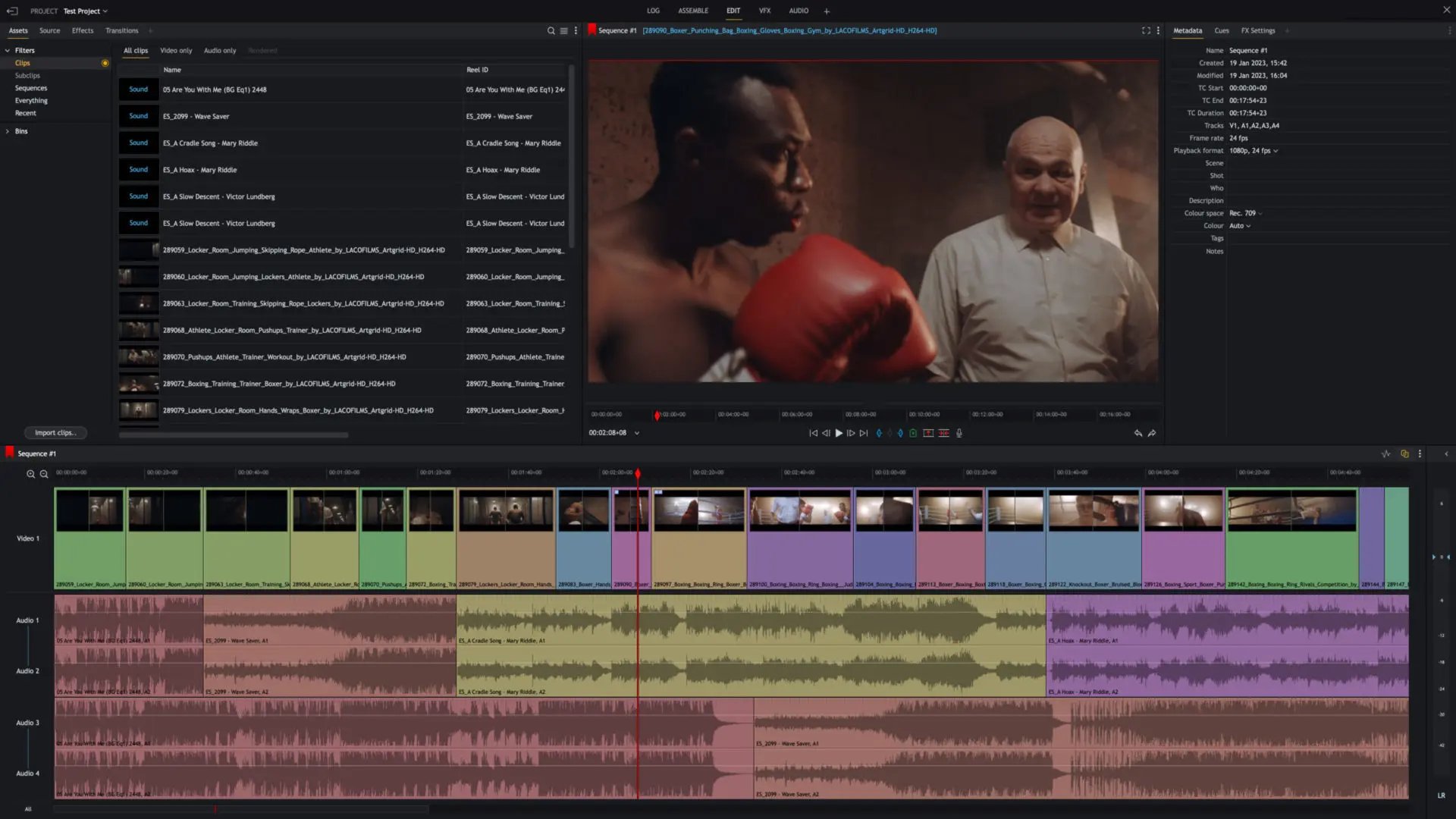
This image shows a typical Lightworks setup screen to give you an idea of what to expect.
Understanding the Lightworks Interface
When you open Lightworks, the screen might look busy at first, but it’s designed to help you work fast. Here’s a quick breakdown:
- Project Browser: This is where you start new projects or open old ones.
- Bins and Clips: Think of bins as folders for your video files, audio, and images.
- Timeline: The bottom area where you build your video. Drag clips here to arrange them.
- Viewer: The big window that plays your edits. Use it to preview changes.
- Tabs: Switch between Log (organizing files), Edit (main workspace), VFX (effects), and Audio.
For beginners, stick to the Edit tab mostly. You can customize the layout by dragging panels around. Lightworks offers two modes: Fixed (simple) and Flexible (more options). Start with Fixed to keep things easy.
Quote from a user on the Lightworks forum: “The interface clicks after a few tries—it’s intuitive once you play around.”
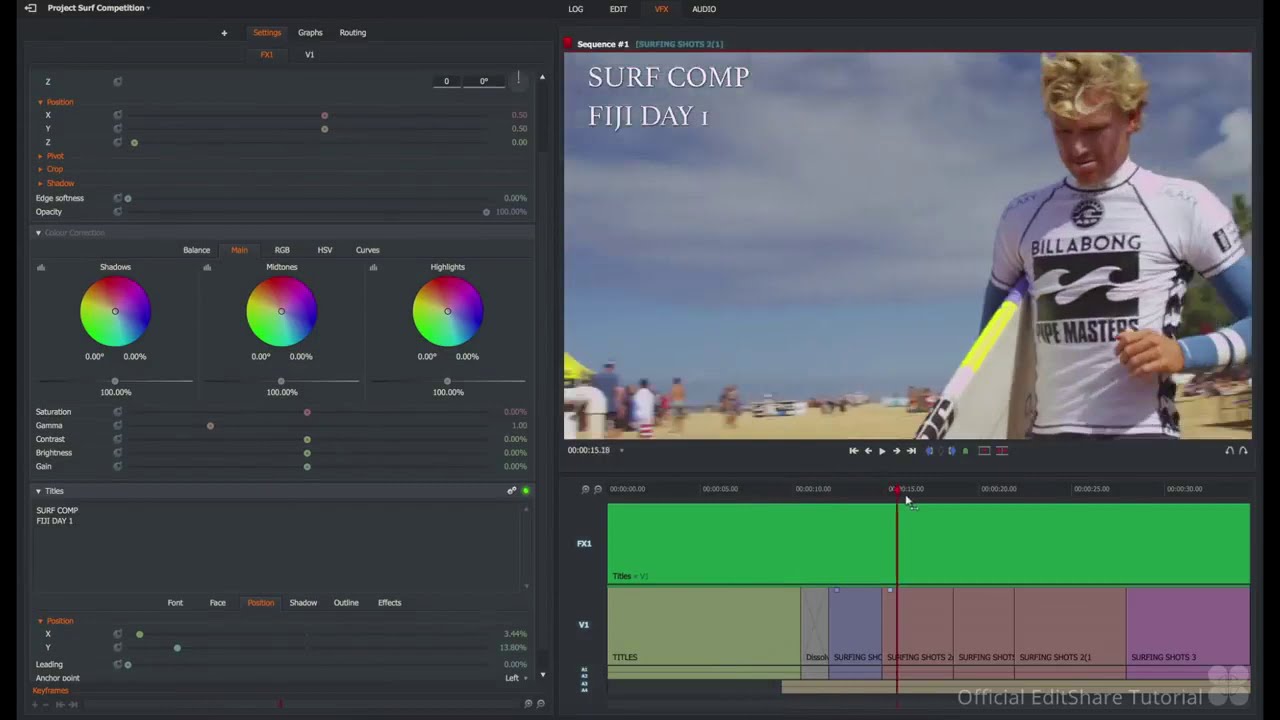
See this screenshot of the interface to spot the main parts we mentioned.
Importing Media into Lightworks
Now, bring in your files. Lightworks handles many formats like MP4, AVI, and even RAW from cameras.
- Click Import: In the Log tab, hit the Import button.
- Select files: Browse your computer and pick videos, photos, or sounds.
- Organize in Bins: Create a new bin by right-clicking and naming it, like “Clips” or “Music.”
- Use Proxies if Needed: For big files, turn on proxies. This makes low-res copies for faster editing. Go to Project Settings > Media > Proxies and enable it.
Tip: Import everything at once to save time. Lightworks can link to cloud storage like Google Drive for easy access.
If you’re coming from other editors, Lightworks imports faster than many free tools, according to user reviews.
Basic Editing on the Timeline
The timeline is where the magic happens. This is your beginner’s guide to putting clips together.
- Drag Clips to Timeline: From your bin, pull a video to the timeline. It snaps into place.
- Trim Clips: Click the ends of a clip and drag to shorten it. Use the red playhead to mark spots.
- Make Cuts: Place the playhead where you want a cut, then hit “C” on your keyboard or use the scissors tool.
- Rearrange: Click and drag clips to change order. Overlap them for simple fades.
- Add Tracks: Right-click to add more video or audio tracks. V1 is video, A1-A4 for sound.
Practice with short clips first. A common tip: Zoom in on the timeline with Ctrl + mouse wheel for precise cuts.
Lightworks’ timeline is praised for handling any frame rate without issues, unlike some basic editors.
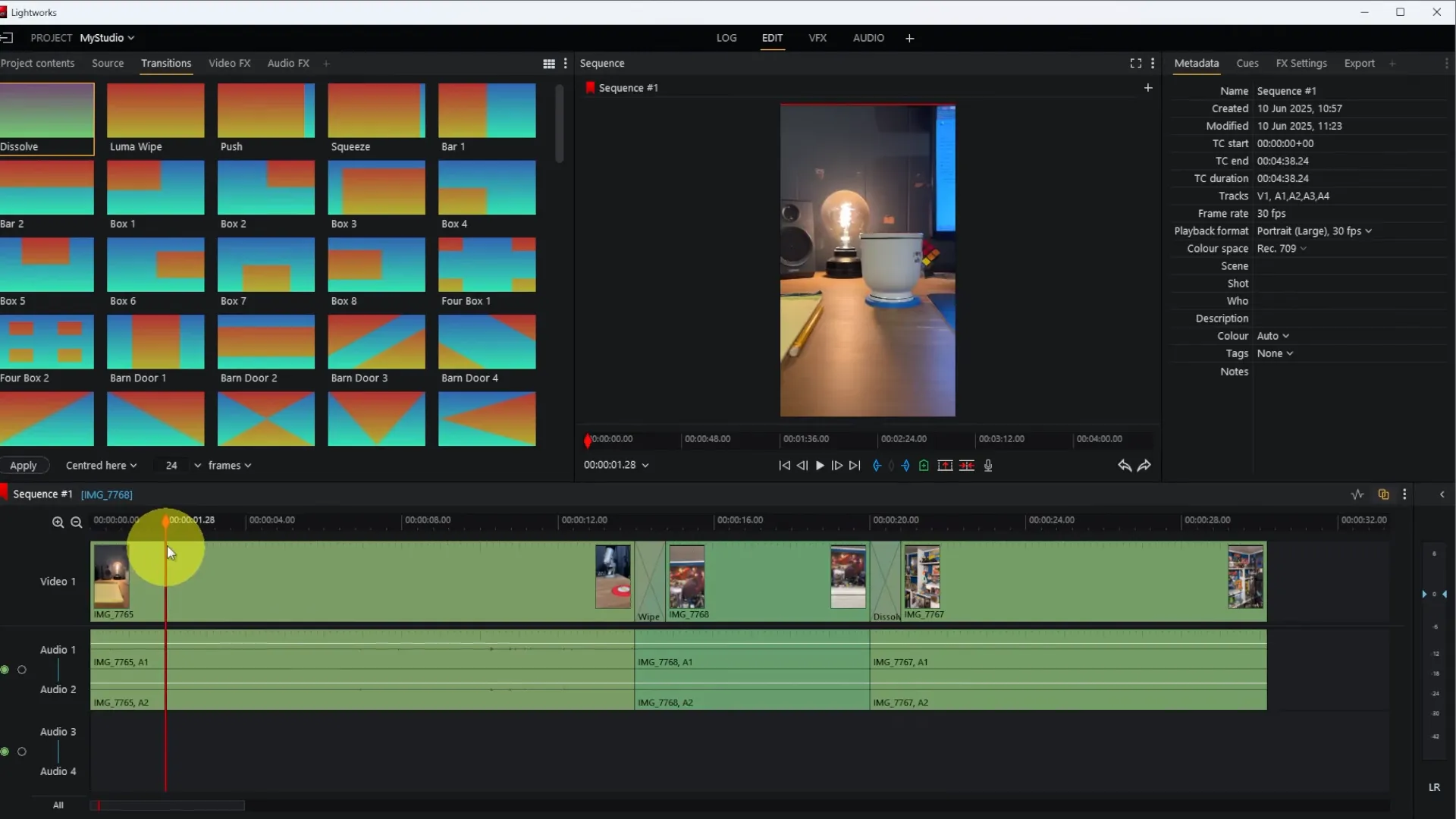 …
…This example timeline shows how clips look when arranged.
Adding Transitions and Effects
Make your video smooth with transitions and fun with effects.
- Transitions: Go to the VFX tab. Pick from dissolves, wipes, or pushes. Drag one between two clips on the timeline.
- Basic Effects: In VFX, add color correction or text. For text, click Titles and type your message.
- Real-Time Preview: Changes show up instantly—no waiting.
- Keyframes for Animation: For moving text, set keyframes. Click the diamond icon, move the playhead, and adjust position.
Start simple: Add a fade-in at the start. Lightworks has over 100 free effects in the base version.
For VFX fans, compare it to why choose HitFilm Express for more advanced effects.
Working with Audio in Lightworks
Good sound makes your video shine. Lightworks has built-in tools.
- Import Audio: Add music or voice like you do videos.
- Mix Levels: In the Audio tab, drag volume sliders. Use waveforms to see loud parts.
- Add Effects: Apply fade-ins or echo. Native FX include noise reduction.
- Sync Sound: Drag audio to match video. Use the nudge tool (arrows) for fine tweaks.
Tip: Keep dialogue at -12 dB and music lower to avoid distortion. Lightworks integrates with DAWs if you need more.
Beginners often overlook audio, but 70% of viewers say bad sound ruins a video, per industry polls.
Color Correction Basics
Make colors pop with simple fixes.
- Go to VFX Tab: Select a clip, then Color > Correction.
- Use Wheels: Drag shadows, midtones, or highlights wheels to adjust.
- Quick LUTs: Apply presets for looks like “cinematic” or “vibrant.”
- Balance White: Use the eyedropper on a white area to fix tints.
Don’t overdo it—small changes go far. Lightworks’ HDR support helps with bright footage.
Previewing and Exporting Your Video
Always check your work.
- Preview: Hit play in the viewer. Scrub the timeline to jump around.
- Export: Go to the Export tab. Choose MP4 for web, set 720p resolution.
- Options: Pick quality (high for best) and folder. Hit Start.
- Share: Upload directly to YouTube from Lightworks.
Free version limits to 720p, but that’s fine for social media. Exports are fast, often under 5 minutes for short videos.
Advanced Tips for Lightworks Beginners
Once basics click, try these:
- Keyboard Shortcuts: Learn “I” for in-point, “O” for out-point to mark clips fast.
- Bins Organization: Label everything to find files quick.
- Undo Often: Ctrl+Z saves you from mistakes.
- Community Help: Join Reddit’s r/Lightworks for tips.
- Practice Projects: Edit a 30-second clip daily to build skills.
Lightworks has tutorials on their YouTube channel—watch one after setup.
Common Mistakes to Avoid
New users trip on these:
- Overloading Timeline: Add clips one by one to stay organized.
- Ignoring Backups: Save projects often; Lightworks auto-saves, but export drafts.
- Bad File Management: Use proxies for large files to prevent crashes.
- Skipping Preview: Always watch full video before export.
- Complex First: Start simple; don’t jump to VFX right away.
Avoid these, and you’ll progress faster.
Comparing Lightworks to Other Free Editors
Lightworks shines for pro features in a free package. Compared to others:
- It’s more advanced than basic tools but easier than DaVinci Resolve for starters.
- For simple edits, see how to use OpenShot for free beginner’s guide.
- If you need heavy VFX, Lightworks pairs well with options in the top 10 list.
For more comparisons, visit the Biz Reporterz home.
| Feature | Lightworks Free | OpenShot | HitFilm Express |
|---|---|---|---|
| Resolution | 720p | 4K | 4K |
| Effects | 100+ | Basic | VFX Heavy |
| Ease for Beginners | Medium | Easy | Medium |
| Platforms | All | All | Windows/Mac |
This table shows why Lightworks balances power and simplicity.
FAQs
Is Lightworks really free?
Yes, the base version is free forever with core tools. Upgrades add 4K and more.
Can beginners use Lightworks?
Absolutely! This How to Use Lightworks Free: Beginner’s Guide! shows it’s straightforward.
What files does Lightworks support?
Most common ones like MP4, MOV, and AVI. Use proxies for big files.
How do I get help if stuck?
Check forums, YouTube tutorials, or the knowledge base at lwks.com.
Does Lightworks add watermarks?
No, exports are clean.
Conclusion
In this How to Use Lightworks Free: Beginner’s Guide!, we covered downloading, editing basics, effects, audio, and more. Lightworks gives you pro tools for free, helping you create videos that look great. With practice, you’ll edit like the pros who use it for Hollywood films. Remember, start small and build up. What video project will you tackle first with Lightworks?
References
- Lightworks Official Site – https://www.lwks.com/ (For features and downloads; targeted at beginners and pros seeking free editing tools).
- Lightworks Forum – https://forum.lwks.com/ (Community tips; useful for troubleshooting and beginner advice).
- The Ultimate Guide to the Top 10 Free Video Editing Software – https://bizreporterz.com/the-ultimate-guide-to-the-top-10-free-video-editing-software/ (Comparisons; appeals to users exploring free options).
- Why Choose HitFilm Express? – https://bizreporterz.com/why-choose-hitfilm-express/ (VFX focus; for audiences interested in effects-heavy editing).
- How to Use OpenShot for Free: Beginner’s Guide! – https://bizreporterz.com/how-to-use-openshot-for-free-beginners-guide/ (Simple alternative; targets absolute beginners).